
You save a number, open WhatsApp, and the person still doesn't show up. Or worse, the chat opens, but only the phone number appears and the contact name never follows. For personal use, that's annoying. For agencies, sales teams, and operators running WhatsApp-based funnels, it breaks handoffs, broadcasts, attribution, and follow-up.
Most WhatsApp contact sync problems aren't random. They come from a few specific settings, permission choices, and newer product behaviors that people miss because the app doesn't explain them well. Some issues live at the phone level. Others happen inside WhatsApp. A few only show up when you try to scale a workflow beyond one device and one user.
Table of Contents
- Understanding How WhatsApp Contact Sync Really Works
- A Practical Guide to Syncing Contacts on Android and iPhone
- Troubleshooting Why Your WhatsApp Contacts Are Not Syncing
- Advanced Contact Sync for Agencies and SaaS
- Best Practices for Managing Your WhatsApp Contact List
- Frequently Asked Questions About Contact Sync
Understanding How WhatsApp Contact Sync Really Works
You save a new lead in WhatsApp on your phone, open your desktop app a minute later, and the conversation is there but the name is wrong or missing. For a personal user, that is annoying. For an agency running follow-up at scale, it creates duplicate records, handoff mistakes, and avoidable message errors.
WhatsApp contact sync works across two separate systems. One is your phone's address book. The other is WhatsApp's own contact and chat state inside the app. Those systems often overlap, but they do not update in the same way or on the same timeline.
Why contacts do not appear where you expect
WhatsApp can only match names correctly if it has permission to read the phone's contacts, as explained in WhatsApp's contact permission guidance. If that permission is missing, partially restricted, or pointed at the wrong contact source, WhatsApp may still show a number while your phone's Contacts app shows a name, or the reverse.
A second issue causes confusion. Saving a number during a WhatsApp conversation does not always mean it has been written cleanly into the main address book you rely on across your device. On some phones, the contact exists inside an app-specific flow first, while the system address book, default account, or display source still needs to catch up.
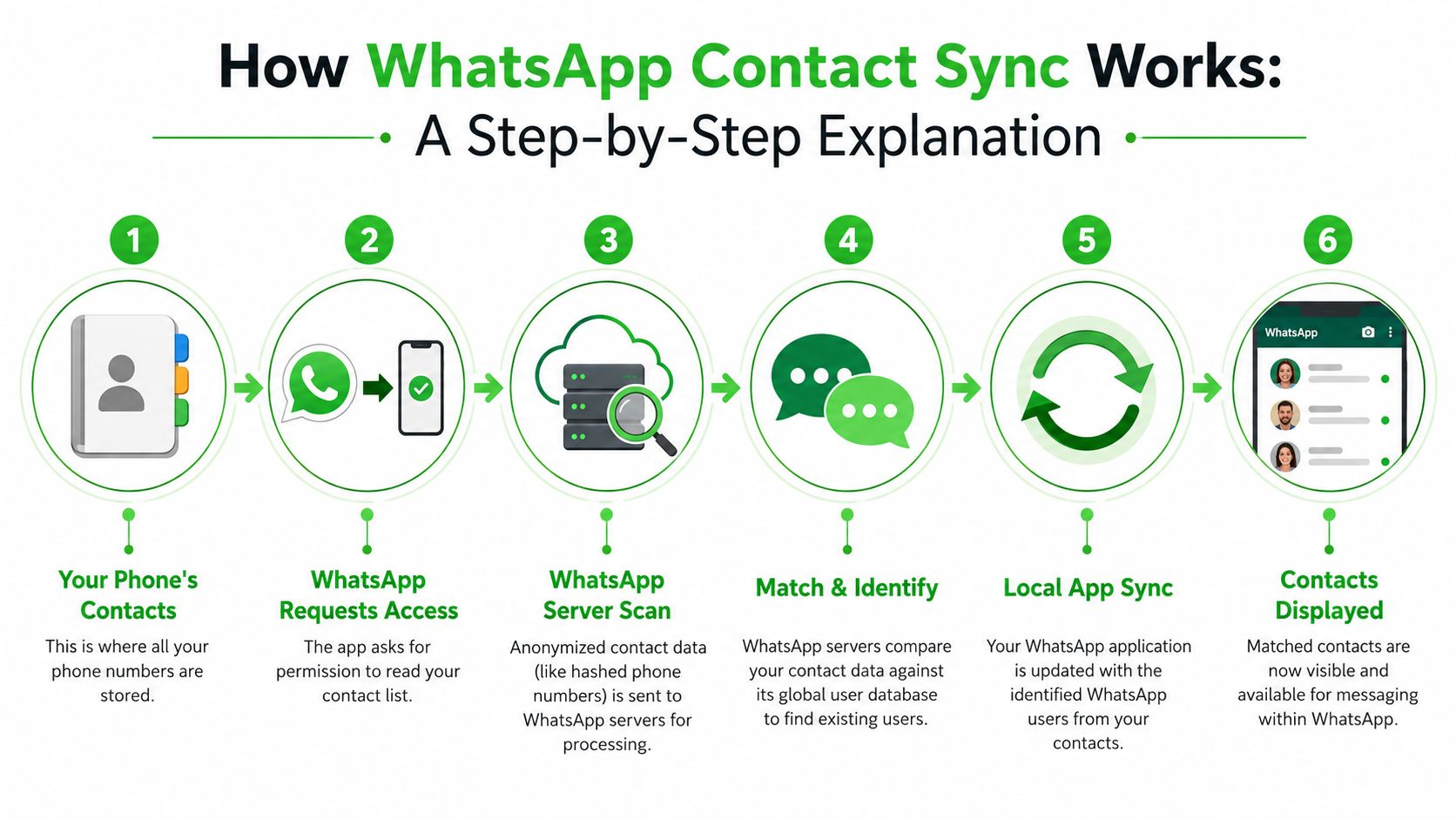
The practical model is simple:
- Your phone stores the master contact record. That record depends on the save location you chose, such as Google, iCloud, or local device storage.
- WhatsApp reads and matches against that record. If access is blocked or delayed, names fail to resolve.
- Linked devices show WhatsApp state, not your full phone contact database. A desktop app can look correct even when the phone's native contacts are still messy.
That last point matters more than many teams realize. Recent WhatsApp changes around linked-device behavior have made the app less dependent on having your primary phone actively connected at all times. That improves day-to-day reliability, but it also hides bad contact hygiene. Staff may assume sync is healthy because names look fine in WhatsApp Web, while the underlying phone book, CRM export, or routing workflow is already drifting out of sync.
For individuals, the usual result is a few missing names. For sales teams and agencies, the cost is operational. The same lead gets saved under different formats, ownership becomes unclear, and reporting breaks because contact identity is no longer consistent across devices, inboxes, and systems.
I treat WhatsApp sync as a matching process, not a single on or off setting. If the phone record, permissions, storage account, and WhatsApp state all line up, names resolve cleanly. If one layer is off, the app still appears to work, but the cracks show up later.
That is also why business teams should stop relying on phone-level contact sync as the long-term system of record. At small volume, it is manageable. At agency volume, you need controlled ingestion, standardized formatting, and automated routing. Teams that also create personalized AI experts for lead qualification or response support run into this quickly, because AI output is only as useful as the contact data feeding it. Double My Leads solves that business-side problem by keeping WhatsApp lead capture and contact sync tied to a cleaner operational workflow instead of scattered across individual devices.
A Practical Guide to Syncing Contacts on Android and iPhone
If you want the fix without guessing, follow the exact path for your device. The click path matters here because WhatsApp uses a mix of operating-system permissions and in-app controls.
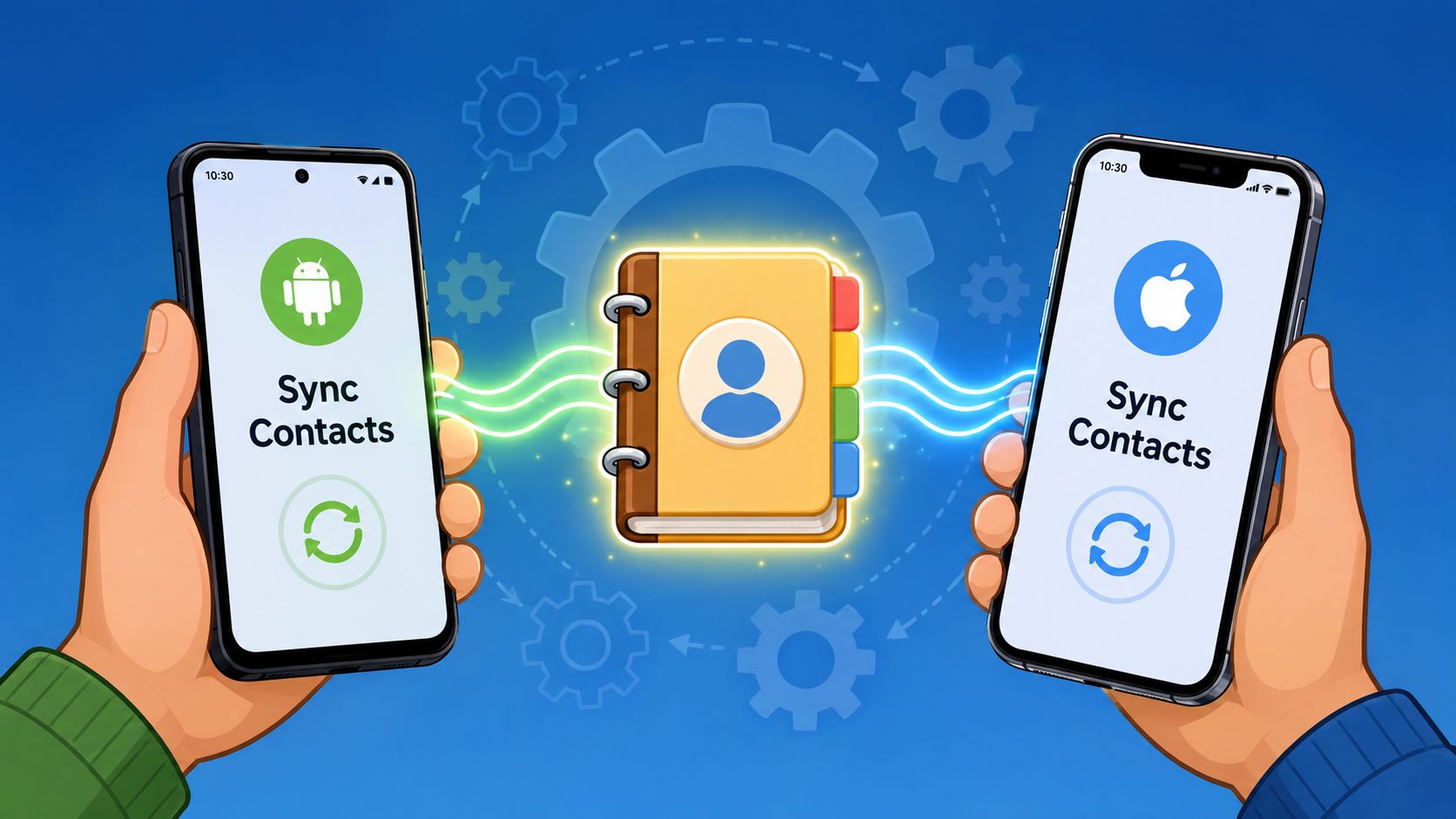
Android steps that actually matter
Android is where most confusion happens because WhatsApp can hold contacts inside the app without pushing them into the phone's address book by default. On Android, users must go to Settings > Privacy > Contacts and disable the WhatsApp Contacts toggle to force the app to sync its contacts into the phone's native address book, based on this Android walkthrough showing the WhatsApp Contacts toggle behavior. That action deletes the app-only version and saves the contact to the device.
Use this sequence:
Grant Contacts permission
- Open your phone's app settings.
- Find WhatsApp.
- Open Permissions.
- Make sure Contacts is allowed.
Refresh WhatsApp's in-app contact list
- Open WhatsApp.
- Tap New Chat.
- Open the three-dot menu.
- Use the refresh option if available on your version.
Change the privacy toggle
- In WhatsApp, go to Settings > Privacy > Contacts.
- Find WhatsApp Contacts.
- Switch it OFF if you want WhatsApp-stored contacts pushed to the phone.
Confirm the save action
- WhatsApp may warn that app-only contacts will be deleted from the app account and saved to the device instead.
- Confirm only if that's what you want.
Check account-level contact sync
- Open your Android account sync settings.
- Make sure your Google account is set to sync contacts for backup and continuity.
If you skip the final account check, the contact may appear today but still be poorly protected or inconsistently available after a phone change.
iPhone checks that unblock missing contacts
On iPhone, the flow is less about the app holding separate contact copies and more about whether iOS allows access. On iOS 14 or later, WhatsApp needs explicit permission through the system privacy menu. If contact access isn't granted, the app can't properly read or update the address book.
Work through these checks:
- Open Settings on the iPhone and go to Privacy & Security > Contacts.
- Find WhatsApp in the app list.
- Enable Full Access if your device presents that option.
- Reopen WhatsApp after changing the permission.
- Check your Contacts app source display if names still don't appear.
One subtle issue gets missed often. If your phone's Contacts to display settings don't include the relevant source, synced contacts may still exist but remain hidden. That's why two people can follow the same steps and report different results.
Teams that build internal support SOPs for mobile issues often document these exact permission paths in a shared knowledge base. If you're formalizing those workflows for staff or clients, tools that help you create personalized AI experts can make repetitive setup support much easier to standardize.
Troubleshooting Why Your WhatsApp Contacts Are Not Syncing
A common support scenario looks like this. The contact exists, WhatsApp is installed, permissions seem fine, and one person on the team can message the number. Then the name does not appear on another device, the record is missing from the phone book, or a click-to-chat flow stops converting. At that stage, generic advice wastes time. The fix usually sits in one of three places: how the contact was created, how WhatsApp is handling link-based contact access, or how Android is delaying sync requests in custom workflows.
The hidden per-contact toggle
One contact failing while the rest of the address book looks normal usually points to a record-level issue. In practice, this happens after someone creates a contact inside WhatsApp and assumes the phone now treats it like a standard address book entry. That assumption causes problems fast in sales, support, and agency environments where the same person may need to appear across the phone, WhatsApp, a CRM, and campaign workflows.
A documented example of this behavior appears in this video demonstration of the per-contact sync issue. The important operational takeaway is simple. A WhatsApp conversation does not always mean the contact was written back to the device in the way other tools expect.
Check the failing contact in this order:
- Confirm where the record was created. A number added inside WhatsApp may not be saved as a normal phone contact.
- Open the contact itself. Look for any option related to saving or syncing that specific record to the device.
- Verify the number in the native Contacts app. If it is missing there, other apps and workflows will often miss it too.
- Check the account destination. On Android, contacts tied to an actively syncing Google account tend to behave more predictably than contacts saved only to the device.
For an individual user, this is annoying. For an agency, it turns into duplicate records, broken owner assignment, and failed follow-up sequences. That is the broader lesson behind understanding CRM synchronization models. Phone sync and business sync solve different problems, and mixing them creates avoidable reporting and routing errors.
When WhatsApp links stop behaving normally
Some sync complaints are not sync complaints at all. They are handoff problems triggered by newer WhatsApp behavior around contact sharing and link activation.
A recent change discussed in this thread on the contact-sharing requirement for WhatsApp links shows why this matters. Users may hit extra friction before a WhatsApp link works as expected. In a personal context, that feels like a privacy annoyance. In paid acquisition or client campaigns, it can lower the number of conversations that start after the click.
Watch for this in flows such as:
- Ads that open WhatsApp chats
- Landing pages using click-to-chat buttons
- Community join links
- Opt-in funnels that depend on a fast app handoff
If campaign response drops and your tracking setup looks unchanged, test the user journey on multiple devices. The weak point may sit inside the app prompt, not in the ad creative or landing page.
A short visual walk-through helps if you're checking user-facing behavior in real time:
Developer fix for delayed Android sync
Teams maintaining Android apps, companion tools, or internal mobile utilities run into a different class of issue. The contact data may be correct, but Android does not process the sync immediately. That delay makes fresh records look missing, which leads support teams to chase the wrong problem.
The practical fix is to request sync with the manual and expedited flags enabled. If your engineering team supports lead capture tools, field sales devices, or agency mobile workflows, review the sync request path first. Delayed execution at the OS level can look identical to a WhatsApp contact failure from the user's perspective.
That distinction matters more as operations scale. Personal troubleshooting focuses on whether a number appears on one phone. Business troubleshooting focuses on whether contact data shows up reliably enough to route leads, preserve attribution, and keep staff working from the same record set. Platforms like Double My Leads are useful at that point because they reduce dependence on one person's handset as the source of truth.
Advanced Contact Sync for Agencies and SaaS
An agency gets a lead from a paid campaign at 9:02. The prospect messages on WhatsApp at 9:04. By 9:20, three people have touched the account, one person saved the number locally, and nobody agrees on the source, owner, or current status of the conversation. The contact is technically "synced" on one device, but the operation is already off track.
That gap matters. Phone contact sync solves personal visibility. Agency contact sync has to preserve attribution, assignment, history, and access across staff and client accounts.
A handset address book cannot do that reliably. It was built for one user managing personal relationships, not for paid acquisition, shared inboxes, client reporting, or lead routing. Once multiple campaigns feed the same WhatsApp workflow, device contacts turn into a weak source of truth. Names differ by rep, duplicates appear under local and international formats, and handoffs break when the original device owner is offline, leaves the team, or forgets to save the number.
Earlier in this guide, the multi-device point was covered from the product side. For agency operations, the practical takeaway is simpler. Linked devices improve access to chats, but they do not solve record governance, attribution, or process control.
The operating model that holds up is a three-layer setup:
| Layer | Purpose | What happens if you skip it |
|---|---|---|
| CRM as source of truth | Stores the canonical lead record, owner, source, and status | Teams create duplicates, overwrite notes, or lose campaign attribution |
| WhatsApp workspace execution | Manages conversations, assignments, templates, and replies | Chats stay tied to one rep or one device |
| Sync and attribution logic | Decides what gets created, updated, tagged, and routed | New leads enter the pipeline without context, and reporting becomes unreliable |
This is why it helps to spend time understanding CRM synchronization models before choosing any WhatsApp stack. A bad sync model creates downstream problems that no inbox tool can clean up later.
In practice, agencies usually choose between two implementation paths.
API-led setup
- Best for teams with engineering support, formal approval paths, and client environments that need custom integrations
- Better control over data flow, but slower to launch and harder to standardize across many accounts
Operational workspace platform
- Best for agencies that need shared inboxes, faster rollout, clearer staff permissions, and repeatable client onboarding
- Easier to run at scale when account managers need consistent execution without custom development on every deployment
This is the point where a platform like Double My Leads fits. It sits between inbound lead capture and WhatsApp execution, so teams are not depending on one person to save numbers manually, assign chats by memory, or rebuild campaign context inside a phone contact list. That reduces a common agency failure mode. The lead arrives, the conversation starts, but the operational metadata never makes it into the system cleanly.
I have seen the same pattern repeatedly in client environments. The team assumes they have a WhatsApp sync issue because names are missing or chats are showing up under the wrong rep. The underlying issue is process design. Contacts are being created in the wrong system, updated too late, or owned by the wrong layer.
Use the CRM to own the record. Use the WhatsApp workspace to manage conversation flow. Use sync rules to control when contacts are created, enriched, assigned, and updated.
If your current workflow still depends on an account manager manually saving numbers on a handset before the rest of the team can act, the problem is no longer app setup. It is operations design.
Best Practices for Managing Your WhatsApp Contact List
A synced contact list is only useful if it's clean. Bad formatting and poor organization create the same symptoms as sync failure. Numbers show without names, broadcasts miss the right people, and staff can't tell which lead belongs to which campaign.
Clean formatting beats bigger lists
Start with number quality.
- Use full international format. Save numbers with the plus sign and country code so WhatsApp can resolve them correctly across regions.
- Avoid duplicate variants. Don't keep one record with a local format and another with an international format for the same person.
- Store contacts in the right place. Save business-relevant contacts in your intended account source, not scattered across device-only storage and app-only records.
- Review inactive records periodically. Remove obsolete or invalid entries so teams don't waste time messaging dead numbers.
Clean data fixes more “sync issues” than most app setting changes.
Segment before you broadcast
Once contact hygiene is handled, the next job is structure. Even small teams benefit from tags, custom fields, or source labels because WhatsApp communication gets messy fast when every lead looks the same.
Useful segmentation logic includes:
- Source-based grouping for ad, landing page, referral, or community entry point
- Lifecycle stages such as new lead, active conversation, booked, customer
- Interest or offer tags for product line, region, or campaign type
One more caution matters here. A recent WhatsApp change can require users to share or upload contacts to activate WhatsApp links, which creates a privacy trade-off and can interfere with link-based flows for agencies, as noted in the earlier section. If link performance drops, review both your contact structure and the handoff experience.
Frequently Asked Questions About Contact Sync
Does syncing contacts mean WhatsApp gets everything
Contact sync depends on what the phone allows WhatsApp to read and what data exists in the contact source your device uses. In practice, WhatsApp reads contact records from the address book available to the app. It does not turn itself into your master contact database, and it does not replace the way Android, iPhone, Google Contacts, or iCloud handle storage.
For linked devices, some app state, including contact names, can sync across your own devices through WhatsApp's multi-device system. That helps keep the experience consistent across phone and desktop, but it does not change the core rule. If the phone contact is missing, malformed, or saved in the wrong place, WhatsApp still struggles to resolve it correctly.
Can you import contacts from CSV
Yes, but not straight into WhatsApp.
The practical route is to import the CSV into the contact system your phone already syncs with, such as Google Contacts or iCloud Contacts, then let the device expose those records to WhatsApp. That is the cleaner option for both personal use and agency operations because it preserves a single source of truth.
For teams managing lead flow at scale, manual phone-based contact storage starts to break down. CSV imports are fine for a one-off cleanup. They are a poor long-term process for agencies that need CRM-to-WhatsApp sync, ownership rules, and consistent lead routing.
Why do numbers show instead of names
This usually points to a contact resolution problem, not a chat problem. WhatsApp has the number, but it cannot match that number to a clean contact record your device can read.
| Cause | What it looks like | Fix |
|---|---|---|
| The contact was saved in the wrong format | You see a raw number in chat | Save the number in full international format in the correct contact source |
| Permissions were revoked | Names disappear or fail to update | Re-enable contact access in Android or iPhone settings |
| The record exists in the wrong account | The contact appears on one device but not another | Move or copy the contact to the account your phone actively syncs |
| Sync has not refreshed yet | A newly saved contact still shows as a number | Refresh contacts, reopen WhatsApp, and confirm the device account has finished syncing |
In managed Android setups, developers can also trigger a manual sync request at the system level. As noted earlier, that is an operating system sync behavior, not a special WhatsApp import feature.
Why does one contact fail while the rest work
A single broken contact usually means the record itself is the problem. Check the exact number format, the storage location, and whether you accidentally created duplicate variants for the same person.
This happens a lot in sales and agency workflows. One lead gets saved from a form, another from a WhatsApp message, and a third from a rep's phone. The result is three partial records with different formatting. WhatsApp then shows inconsistent names, or no name at all, because the underlying contact data is fragmented.
What's the fastest way to diagnose a sync problem
Start with the contact record, not the app reinstall.
- Confirm the contact exists in the native Contacts app.
- Confirm the number is saved in full international format.
- Check which account holds the contact, such as Google, iCloud, Exchange, or device-only storage.
- Make sure WhatsApp still has contact permission.
- Refresh WhatsApp and verify the device account has completed its own sync.
That order saves time because it separates phone-level data issues from WhatsApp-level display issues.
If your team has outgrown manual contact saving, scattered phone-based workflows, and inconsistent lead visibility, Double My Leads gives agencies and SaaS teams a cleaner way to run WhatsApp operations. You can connect numbers quickly, centralize conversations, sync participants from your CRM, preserve lead-source context, and manage client workspaces without building your entire process around one person's handset.


