
If your team keeps “raising the attachment limit” and uploads still fail, the problem isn't the number you changed. The browser can accept a file, the app can approve it, and the request can still die in the reverse proxy, the application server, the storage layer, or the email system that ultimately has to carry it. In practice, limit attachment size is never one setting, it's a chain of settings that all have to agree.
That's why a form that says 50 MB can still fail on a 25 MB ceiling, or even earlier, when a proxy, parser, or downstream delivery channel disagrees. The safest mental model is simple, the real limit is the smallest limit in the path.
Table of Contents
- Why a Higher Upload Limit Still Fails
- Enforcing the Limit in the Browser
- Setting the Limit in PHP and Node Backends
- Configuring Nginx and Apache for Larger Uploads
- WordPress, S3, and Other Real-World Surfaces
- Email and WhatsApp Attachment Ceilings
- UX Patterns, Troubleshooting, and a Shipping Checklist
Why a Higher Upload Limit Still Fails
A bigger UI field does not create capacity by itself. It only tells users what the app wishes were true, while the browser, parser, framework, reverse proxy, app server, storage backend, and delivery channel keep enforcing their own rules.
Practical rule: if you only changed the front end, you changed the label, not the transport.
The failure usually shows up at the first layer that disagrees with the form. A file can clear the browser check, then hit a parser that runs out of memory, then get blocked by framework middleware, then die at the reverse proxy with a 413 before it reaches Express or PHP. If the request gets past the app, the storage backend can still reject it, and if the file is meant for email or chat, the delivery system can cut it off after your app already accepted it.
A marketing team can set a 50 MB upload rule in the form, then watch files fail anyway because Nginx rejects the request before it ever reaches the app, or because the email gateway later refuses the attachment. Microsoft's guidance makes the same point in a different stack, the ceiling varies by account type, and enterprise controls can override whatever the UI says. Outlook Internet email accounts default to 20 MB, Exchange accounts often default to 10 MB, and administrators can raise or remove limits with policy and registry settings, including MaximumAttachmentSize in KB and a mail-flow Maximum send size control (Microsoft support, Microsoft Q&A).
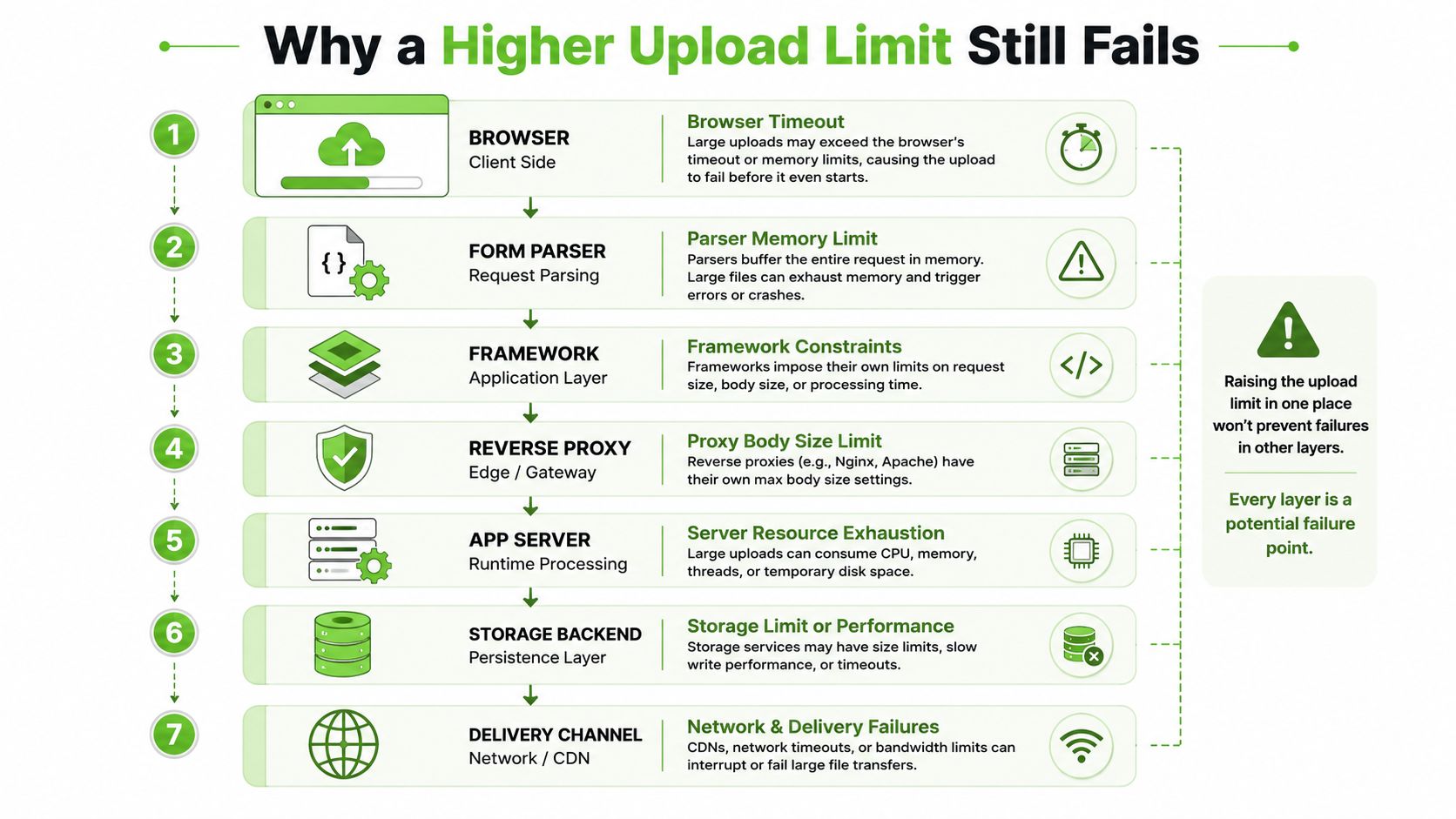
The seven layers that have to agree
The useful audit list is boring but effective. Check the browser, form parser, framework, reverse proxy, app server, storage backend, and whatever system delivers the file next, because any one of them can stop the upload.
- Browser: a file picker lets the user choose the file, but client-side validation can block it before a request is sent.
- Form parser: multipart handling can fail while buffering the request body, especially if the parser reads too much into memory.
- Framework: upload middleware can reject the payload even after the transport layer accepts it.
- Reverse proxy: Nginx or Apache can return a 413 before the request reaches the application.
- App server: PHP-FPM, Node, or another runtime can enforce its own request-body cap after the proxy is already satisfied.
- Storage backend: object stores or databases can refuse the file because of object size rules, metadata limits, or write-time constraints.
- Delivery channel: email, WhatsApp, support tooling, or an external recipient inbox can impose a lower ceiling than your app.
A good rule of thumb is to set the edge of the system as high as you can support, then set the application a little lower so the app gets the final say. That avoids ambiguous failures where the UI invites an upload the backend will never honor.
Enforcing the Limit in the Browser
The browser should do two jobs. It should guide honest users before upload starts, and it should reject obviously too-large files without making them wait for a doomed transfer. That means using both HTML hints and JavaScript checks, not one or the other.
HTML can filter, JavaScript can decide
The accept attribute helps the file picker surface the right file types, but it doesn't enforce size. Size enforcement needs File.size, which is available before the network request starts.
<input id="attachment" type="file" accept="image/*,.pdf,.doc,.docx" />
<p id="limit-help">Maximum file size: 10 MB</p>
<div id="error" aria-live="polite"></div>
const input = document.getElementById('attachment');
const error = document.getElementById('error');
const maxBytes = 10 * 1024 * 1024;

input.addEventListener('change', () => {
  const file = input.files?.[0];
  if (!file) return;

  if (file.size > maxBytes) {
    error.textContent = 'That file is too large. Please upload a smaller file or use the link-sharing option.';
    input.value = '';
    return;
  }

  error.textContent = '';
});
A drag-and-drop zone uses the same rule. The drop event gives you a File object, and you can check the byte count before you even render a progress bar.
Honest users should never discover the limit after a long upload. Rejecting early is better UX than a polished failure screen.
What the client should show
Display the current limit, the accepted file types, and one friendly failure message. If the file is too large, offer a fallback right there, such as compressing the file or sharing a link.
Do not assume client validation is real enforcement. A user can bypass it with DevTools, a direct HTTP client, or a custom script. Client checks are a courtesy, not a security boundary.
Setting the Limit in PHP and Node Backends
Backend limits matter because they decide what the server will parse. If the application stack won't accept the body, every upstream validation rule is just decoration.
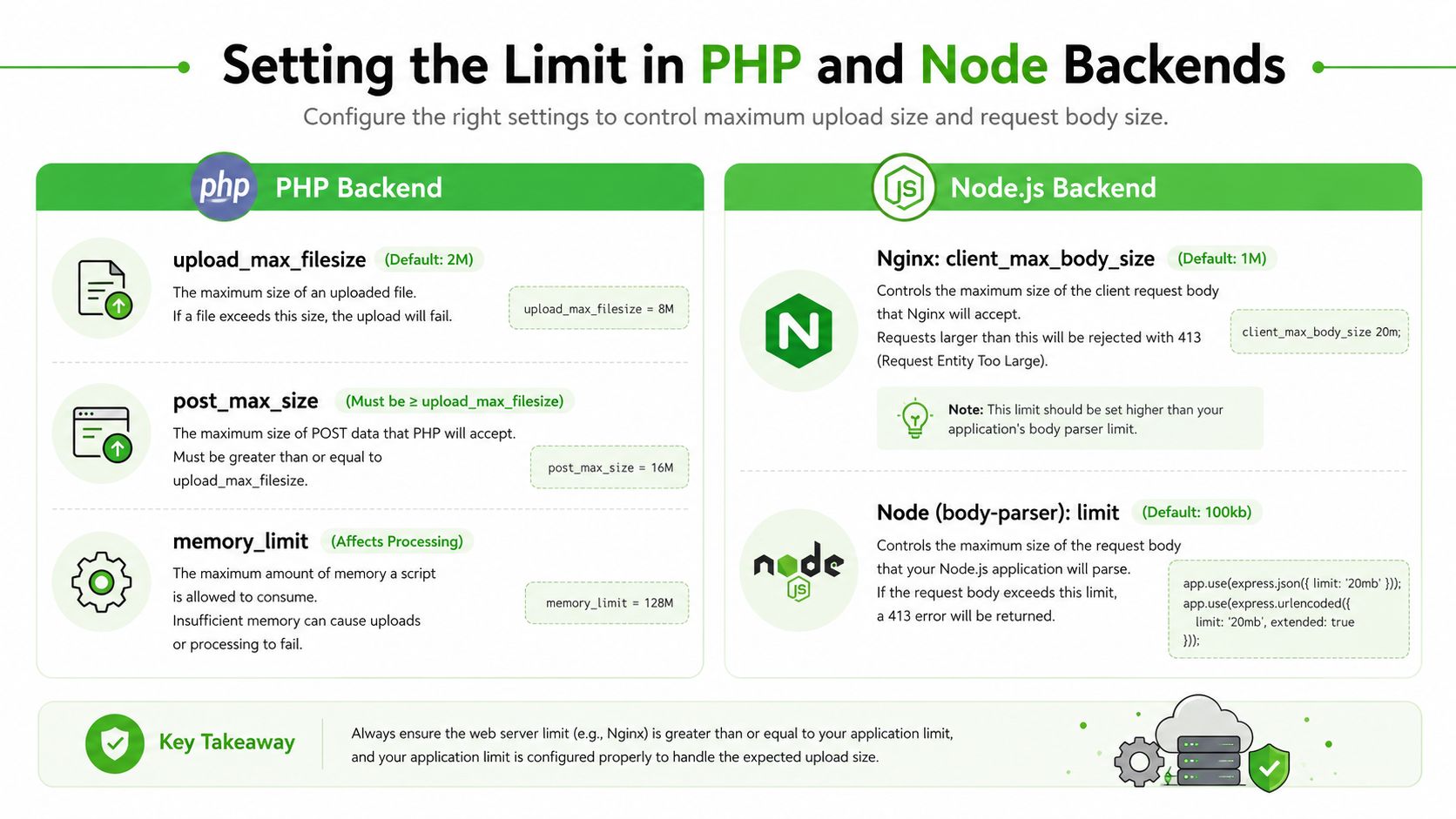
PHP needs three settings to line up
In PHP, upload_max_filesize controls the file upload cap, post_max_size must be larger than upload_max_filesize, and memory_limit must be large enough to process the request safely. If the order is wrong, uploads can fail even when one value looks generous.
upload_max_filesize = 20M
post_max_size = 22M
memory_limit = 256M
That order matters because the request body has to fit through the post layer before PHP ever gets a chance to inspect the uploaded file. If your code reads the file into memory, memory_limit becomes part of the limit story too.
Node and Express usually rely on middleware
Node itself doesn't define a universal attachment cap. In Express, you usually enforce size through middleware such as Multer, which throws LIMIT_FILE_SIZE when the file exceeds limits.fileSize.
import express from 'express';
import multer from 'multer';

const upload = multer({
  limits: { fileSize: 10 * 1024 * 1024 }
});

const app = express();

app.post('/upload', upload.single('attachment'), (req, res) => {
  res.json({ ok: true });
});

app.use((err, req, res, next) => {
  if (err instanceof multer.MulterError && err.code === 'LIMIT_FILE_SIZE') {
    return res.status(413).json({ error: 'File too large' });
  }
  next(err);
});
That 413 response matters. It lets the UI show a meaningful message instead of a generic 500, which is what users remember as “the upload is broken.”
| Layer | PHP | Node + Express + Multer |
|---|---|---|
| File-size cap | upload_max_filesize |
limits.fileSize |
| Request-body cap | post_max_size |
Middleware or body parser limit |
| Processing headroom | memory_limit |
Runtime memory and streaming strategy |
| Oversize error | Often a PHP-side failure or empty request | MulterError with LIMIT_FILE_SIZE |
A lot of JSON-only APIs have no upload limit at all until you add multipart handling. As soon as you support files, define the cap explicitly, wire the failure into a 413 response, and keep the UI message aligned with that value.
Configuring Nginx and Apache for Larger Uploads
Most production upload failures happen below the app. The reverse proxy rejects the body, the request never reaches the runtime, and the application team spends an hour debugging code that never ran.
Nginx blocks big requests early
Nginx uses client_max_body_size. You can set it in the http, server, or location block, then reload Nginx so the new value takes effect.
server {
    client_max_body_size 20m;
}
After changing it, reload rather than bounce blindly:
nginx -s reload
When Nginx rejects the body, you typically see 413 Request Entity Too Large. That's useful, because it tells you the request never made it to the app.
Apache uses a different knob
Apache uses LimitRequestBody in the relevant <Directory> block or .htaccess, but .htaccess only works if AllowOverride All is enabled for that path. Without that override, the setting sits there looking correct while Apache ignores it.
<Directory "/var/www/html">
    LimitRequestBody 20971520
</Directory>
Apache can fail before PHP sees the request, which is why people blame PHP for a problem in the web server. PHP-FPM also has its own upload behavior, so raising Nginx alone doesn't solve the whole chain.
Set the proxy as high as practical, then make the app slightly stricter. That way the app, not the edge, decides the final rule.
There's still one browser-side caveat. Older clients can have their own rendering or upload behavior quirks, so a clean server config doesn't guarantee every device will behave identically. The fix is still the same, keep the limits consistent across layers and test from the edge in.
WordPress, S3, and Other Real-World Surfaces
Teams don't start with a blank app. They inherit WordPress, object storage, or a managed hosting panel, and each of those adds another place where limit attachment size can drift away from the value the UI shows.
WordPress is really PHP plus theme logic plus hosting
WordPress doesn't own the upload ceiling by itself. The effective cap usually comes from php.ini, .htaccess overrides, the hosting panel such as cPanel's MultiPHP INI Editor, and any theme or plugin filter hooked into upload handling.
WP_MEMORY_LIMIT is not the file cap, so don't treat it as one. If php.ini says one thing and the host panel says another, the lower value wins. That mismatch is the fastest way to waste time in WordPress support.
S3 behaves more like storage policy than a form field
Amazon S3 is the opposite of a CMS upload form. The storage layer has its own behavior, and multipart uploads are the safer pattern for larger files because they avoid treating a giant object as one fragile request. Presigned URL policies can also encode a maximum content length so S3 rejects oversized uploads at the storage boundary instead of after your app has already accepted them.
The useful mental model is simple, your app can say “yes,” but S3 still decides whether the object fits the policy you gave it. That separation is good, because it keeps storage enforcement close to storage.
If you're debugging a handoff across systems, boost reliability with observability is the right lens. Uploads fail in different layers for different reasons, and logs, traces, and request IDs make the mismatch visible much faster than guessing.
What these surfaces do not solve
A CMS setting can't exceed a smaller PHP cap. An S3 policy doesn't fix a proxy that blocks the request before it reaches your app. Each layer can only enforce what it receives.
That's why inherited systems need a limit audit, not just a setting change. Find the smallest layer, confirm it's intentional, then align the others around it.
Email and WhatsApp Attachment Ceilings
Email is where many teams learn the hard limit. The system that sends the file is often not the one that decides whether the other side can receive it.
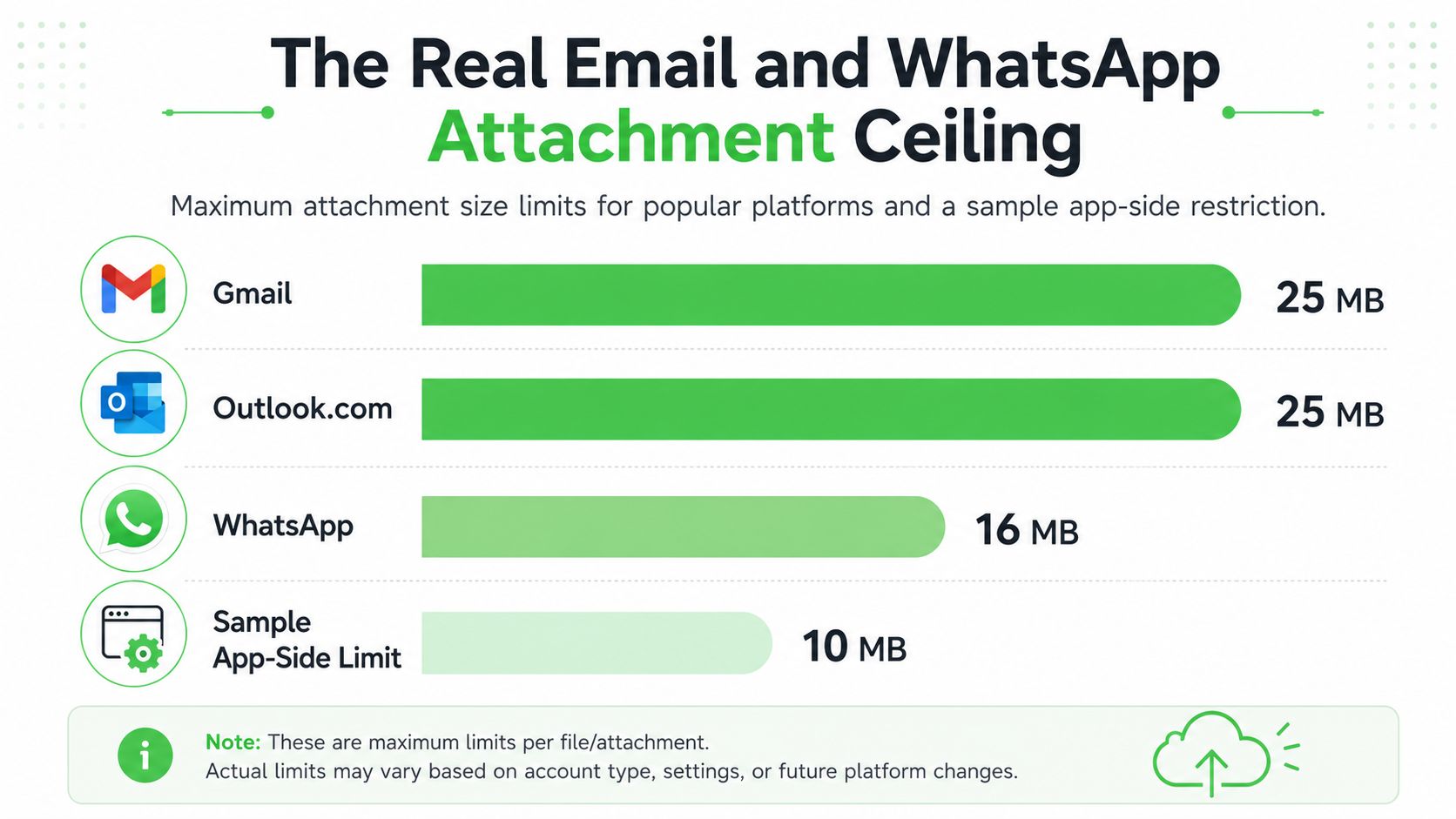
The ceiling is lower than support teams handling file-heavy threads expect
SMTP2GO's guidance says the safest universal target is to keep the entire message under 10 MB, not just the attachment, because the body, signature, inline images, and encoding overhead all count (SMTP2GO). Gmail's documented sending limit is 25 MB, but Base64/MIME encoding can reduce the effective file payload to about 18 MB on the wire even when the visible limit still says 25 MB.
Microsoft's own guidance says internet email accounts such as Outlook.com or Gmail typically allow 20 MB total attachment size, Exchange accounts default to 10 MB, and Outlook.com can send files up to 25 MB while recommending OneDrive links for larger files. Microsoft also documents a default 20 MB attachment limit for Outlook Internet email accounts and explains that MaximumAttachmentSize can be changed, including setting it to 0 to remove the limit entirely (Microsoft Q&A, Microsoft support).
That means the safe cross-organization target is still the lowest common denominator, not the prettiest UI number. If the file has to survive corporate mail filters and mixed inbox policies, under 10 MB total message size is the conservative choice.
Count matters too
The silent problem isn't always one giant file. Multiple smaller images, docs, or voice notes can still create a rough workflow, especially in support threads where people keep adding more context instead of consolidating it.
A good attachment policy therefore needs more than a size cap. It also needs a file-count limit and a clear fallback for larger assets, or conversations turn into a pile of nearly acceptable uploads that slow everyone down.
If the file matters more than the message thread, send a link. Email was built to move messages, not to carry every heavy asset a team can produce.
UX Patterns, Troubleshooting, and a Shipping Checklist
A limit that works technically can still feel broken if the user only learns about it after waiting. The best UX shows the rule early, rejects fast, and offers a clear alternate path when the file is too large.
Patterns that save users from avoidable failures
Show the limit before upload starts. Keep the error message friendly and specific. Offer a fallback such as compression, chunked upload, or link sharing the moment the file crosses the threshold.
That matters even more in support and community workflows, where people often upload several files in sequence. A good flow gives them a next step, not just a dead end.
Common errors usually point to one layer
| Error Message | Likely Cause | Quick Fix |
|---|---|---|
| 413 Request Entity Too Large | Nginx rejected the request body | Raise client_max_body_size, then reload Nginx |
upload_max_filesize in php.ini |
PHP cap is lower than the file | Increase upload_max_filesize and post_max_size together |
LIMIT_FILE_SIZE |
Multer blocked the upload | Raise limits.fileSize and return a 413 |
| “Attachment size exceeds the allowable limit” | Outlook or Exchange hit its message cap | Reduce the file, share a link, or ask the admin to change policy |
When support engineers see one of those messages, they should check logs first, not guess. The error string usually identifies the layer that said no.
Shipping checklist that actually holds
- Set the limit in every layer: browser hint, app validation, middleware, proxy, runtime, and storage policy.
- Make the lowest layer the source of truth: the smallest real cap should drive the UI copy.
- Test with
curland a direct client: browser tests can hide bypasses and proxy differences. - Keep a link-sharing fallback ready: large files need an escape hatch.
- Match the recipient channel: if the final step is email or WhatsApp, align the policy with that channel's actual ceiling.
For teams shipping WhatsApp-heavy workflows, respect the same rule. Media flows need a clear size policy, a fallback for heavier assets, and a UI that doesn't promise more than the channel can deliver.
A limit that passes this checklist is boring in production, which is exactly what you want. Set it once, test every layer, and give users a link-sharing fallback before they hit the wall.
Need a cleaner attachment flow that doesn't break at the edge of your stack? A CTA for Double My Leads.


