
A lead form comes in at 9:07. Your client doesn't see it until 11:40 because the response is sitting in a spreadsheet, buried under browser tabs, inbox noise, and someone's promise to “check submissions after lunch.” By then, the buyer has already replied to a competitor on WhatsApp.
That's the main problem with most Google Forms setups. The form works. The notifications sort of work. The sheet fills up. But the workflow around the submission is slow, and slow follow-up kills intent.
A solid workflow Google Forms setup fixes that. The form captures the data, Google Sheets stores it, Apps Script or a no-code tool routes it, and the right person gets the alert instantly. If you build it well, the same submission can update a CRM, notify Slack, assign an owner, and trigger a WhatsApp handoff without anyone touching the sheet manually.
Table of Contents
- Introduction to Google Forms Workflow
- Prerequisites and Initial Setup
- Automating Notifications with Sheets and Apps Script
- Creating Multi Channel Automations with Zapier and Make
- Integrating WhatsApp with Double My Leads
- Troubleshooting and Best Practices
- Conclusion and Next Steps
Introduction to Google Forms Workflow
A prospect fills out your form at 9:03. By 9:04, the sales rep should already have the lead, and the prospect should have a WhatsApp message in hand if that is your follow-up channel. That timing is what separates a form that collects data from a workflow that drives revenue.
Google Forms has been part of Google's toolkit since 2008, and its staying power comes from one practical advantage. It gives agencies a fast, low-friction way to capture structured input without asking clients or internal teams to learn a new interface.
For agency work, the form itself is rarely the hard part. The core design work starts after submission. One form may need to split new leads to sales, send support requests to account managers, flag high-intent inquiries for immediate outreach, and hold low-quality submissions for review. Once that happens, Google Forms becomes the intake layer, not the whole process.
Practical rule: If a human has to open the response sheet to decide what happens next, the workflow is incomplete.
That is also where many tutorials fall short. They stop at email notifications. Email is fine for low-urgency updates, but it is a poor default for hot inbound leads that need a response while the buyer is still on their phone. In agency builds, the bigger question is simple: what happens in the first minute, and can that lead be routed straight into WhatsApp without waiting for someone to check inboxes or spreadsheets?
A reliable Google Forms workflow starts with that routing decision. Capture the data once. Standardize the fields. Then send each submission to the right place immediately, whether that is a Sheet, a CRM, Slack, or WhatsApp through Double My Leads. That last step matters more than many guides admit, because fast lead response is usually won or lost after the form submit, not in the form builder.
Prerequisites and Initial Setup
A Google Forms workflow usually breaks in the first live test, not because the automation logic is hard, but because the intake layer was set up loosely. I see the same pattern in agency builds: a form goes live, a lead submits on mobile, the data lands in Sheets, and then routing stalls because the phone field is inconsistent, the destination owner is unclear, or nobody defined what should happen for a high-intent submission. If WhatsApp response time matters, setup decisions made here decide whether Double My Leads can route instantly or whether the team falls back to checking a spreadsheet manually.
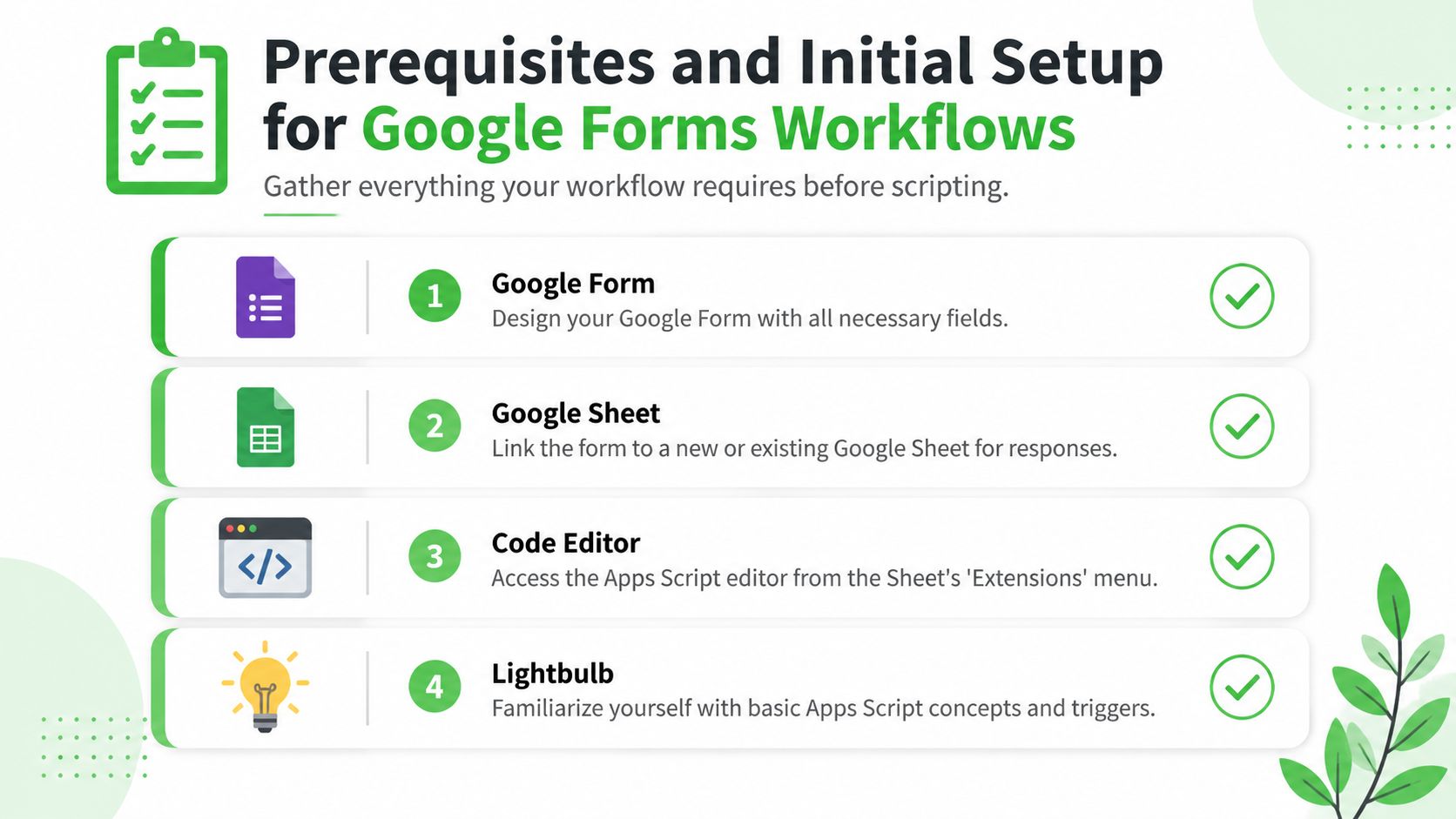
Build the base stack correctly
Start with a production-ready form, not a draft that still has placeholder fields. Field names should be final before you connect Apps Script, Zapier, Make, or a webhook endpoint, because renaming questions later often breaks mappings unexpectedly.
Set up these pieces before any automation test:
- Google Form: Use clear field labels such as Full Name, Email, Phone, Company, and Service Requested.
- Linked response sheet: Connect the form to Google Sheets immediately so every submission has a single operational record.
- Apps Script access: Open the response sheet and go to Extensions > Apps Script to create a spreadsheet-bound project.
- Automation platform: Prepare Zapier or Make if the workflow needs to leave Google Workspace.
- Destination requirements: Gather webhook URLs, CRM field rules, Slack channel IDs, pipeline stage names, and WhatsApp routing criteria before testing.
- Permissions plan: Decide who can edit the form, the sheet, the script, and downstream automation tools.
For lead routing, the phone field deserves extra attention. If the team wants immediate WhatsApp follow-up through Double My Leads, collect phone numbers in one format and make the field required. Free-text phone inputs create cleanup work later, and cleanup kills speed.
One more practical call. Decide whether the form is collecting every inquiry or only qualified leads. If it is both, add a field that helps routing, such as budget range, service type, location, or urgency. That single choice makes downstream branching far easier.
Set the response sheet up for automation
The linked sheet should work as an operations layer, not just an archive. I usually add utility columns before the first submission test so the team can see routing outcomes without opening automation logs.
| Column | Purpose |
|---|---|
| Lead Status | New, Routed, Error, Followed Up |
| Assigned To | Team member or queue |
| Last Action | What the automation did |
| Error Notes | Useful for failed webhook calls |
That structure helps in two places. Operations can spot failures quickly, and automations can write back their state after each action.
Keep one response sheet as the source of truth. Splitting early routing across multiple sheets creates reconciliation problems fast.
This same spreadsheet discipline shows up in adjacent use cases too, especially in automating AWD inventory tracking, where clean columns and consistent statuses matter just as much as the automation itself.
Before you write a single line of script, run one manual submission from the exact device your leads will use most often. On many agency forms, that is mobile. Confirm the timestamp, phone format, required fields, and destination values all land correctly in the sheet. Fixing those issues now is cheaper than debugging a failed WhatsApp handoff after paid traffic is already running.
Automating Notifications with Sheets and Apps Script
Apps Script is still the cleanest way to add immediate reaction logic to a Google Forms workflow when the first actions live inside Google Workspace. It's close to the data, easy to bind to the response sheet, and flexible enough to send email, call webhooks, or write back status values.
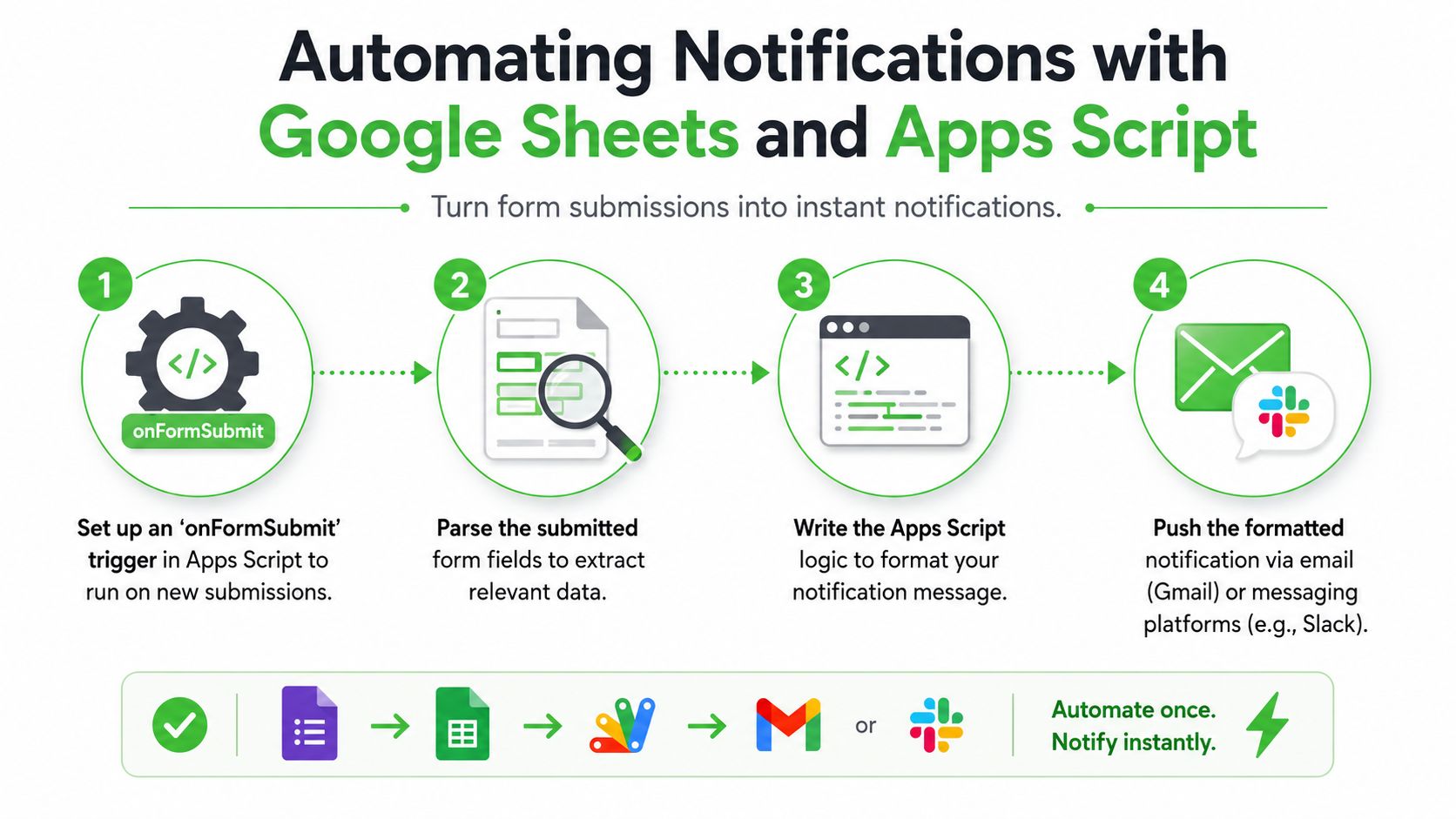
Why the Sheet matters more than the Form UI
A common mistake is thinking the form itself is the trigger source for everything. In practice, many stable automations depend on the response sheet, not just the form interface.
In enterprise-grade workflows, setting the Apps Script trigger event source to “from spreadsheet” improves synchronization success rates to 92%, compared with generic triggers that often fail unnoticed, according to this Apps Script trigger reference in practice. That matches what experienced builders already know. Spreadsheet-bound triggers are easier to observe, test, and recover.
If you work heavily in Sheets operations, the same pattern shows up outside lead capture too. This guide on automating AWD inventory tracking is a good example of using Sheets as an operational hub instead of treating it like passive storage.
Here's the video walkthrough promised for this part of the build:
A working Apps Script pattern
This pattern handles a new submission, formats a message, emails a sales inbox, and posts to Slack through an incoming webhook.
function onFormSubmit(e) {
  const values = e.namedValues;

  const name = (values["Full Name"] || [""])[0];
  const email = (values["Email"] || [""])[0];
  const phone = (values["Phone"] || [""])[0];
  const service = (values["Service Requested"] || [""])[0];
  const notes = (values["Notes"] || [""])[0];

  const subject = `New lead: ${name} (${service})`;
  const body =
    `New Google Form submissionnn` +
    `Name: ${name}n` +
    `Email: ${email}n` +
    `Phone: ${phone}n` +
    `Service: ${service}n` +
    `Notes: ${notes}`;

  GmailApp.sendEmail("sales@youragency.com", subject, body);

  const slackWebhook = "https://hooks.slack.com/services/replace/this/value";
  const payload = {
    text: `New lead receivednName: ${name}nService: ${service}nEmail: ${email}nPhone: ${phone}`
  };

  UrlFetchApp.fetch(slackWebhook, {
    method: "post",
    contentType: "application/json",
    payload: JSON.stringify(payload),
    muteHttpExceptions: true
  });
}
A few practical notes matter more than the code itself:
- Bind the script to the response sheet, not a random standalone project.
- Install an actual trigger in Apps Script. Don't rely on a function just existing.
- Use exact field labels from the form. If the label changes, the script can stop reading the expected value.
- Write back status values to the sheet if you need auditability.
When you need a first response fast, send the shortest useful notification possible. Don't dump every field into Slack and force the team to scan a wall of text.
For internal alerts, concise beats complete. Send enough context to act, then link the team back to the row or CRM record for detail.
Creating Multi Channel Automations with Zapier and Make
Apps Script is great for Google-native logic. Once you need CRM updates, branching, enrichment, or different actions by lead type, no-code tools become more practical.
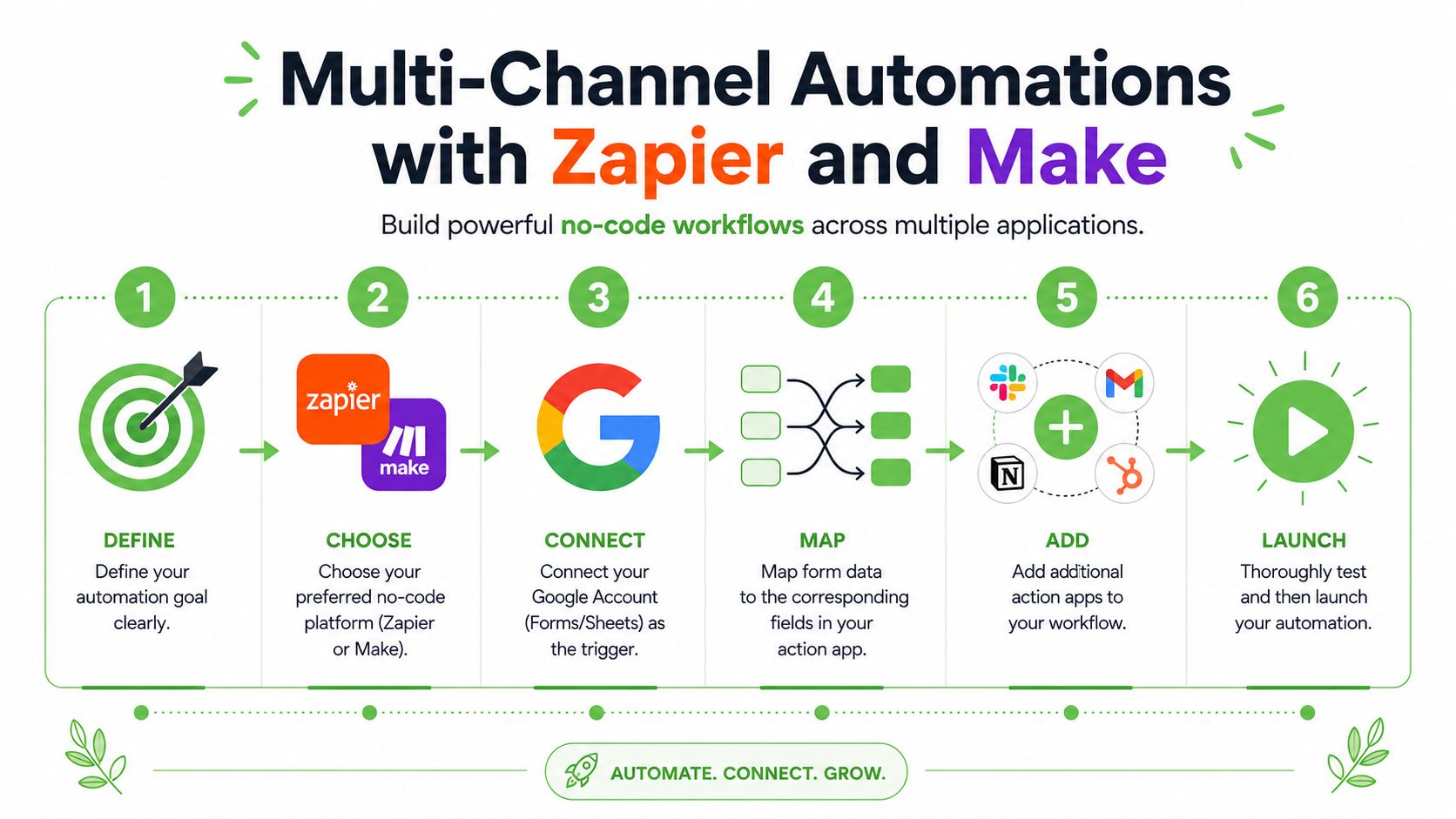
The six-step build order that prevents silent failures
The best setup sequence is simple. Define the goal, choose Zapier or Make, connect the Google account as the trigger, map fields, run a dummy submission, then activate the workflow.
That test step is not optional. Skipping “Test the Workflow” causes up to 40% of automations to fail unnoticed because the data path was never verified, according to this Google Forms automation workflow guide.
The trigger should come from the linked sheet, not just the internal responses tab. If the form hasn't been connected to Google Sheets first, many no-code tools won't see the new entries reliably.
A clean multi-channel path often looks like this:
- New row in response sheet
- Formatter step to normalize phone and service values
- CRM action to create or update contact
- Internal alert to Slack or email
- Branching rule for high-intent versus low-intent submissions
- Webhook step for mobile messaging or custom systems
When Zapier is enough and when Make is better
Zapier is usually the faster choice when the route is linear. One trigger, a few action apps, and straightforward field mapping. It's good for agencies that need something dependable without too much branching.
Make is better when the workflow has routing logic, filters, multiple paths, or sheet-specific destinations. If your agency is comparing broader automation options before standardizing, this piece on Deciding on GTM automation platforms is useful because it forces the right architectural questions before you commit to a stack.
Here's how I'd choose in practice:
- Pick Zapier if your team values speed of deployment over deep branching.
- Pick Make if one submission may go to different tabs, owners, or app chains based on answers.
- Use Apps Script plus no-code when you want lightweight preprocessing inside Google Workspace, then hand off to an external tool.
A routing table helps keep the build honest:
| Submission type | Immediate action | Secondary action |
|---|---|---|
| Sales inquiry | Notify sales channel | Create CRM lead |
| Support request | Route to support inbox | Add ticket metadata |
| Partnership form | Notify account lead | Add review tag |
| High-intent request | Send mobile alert | Assign owner |
For most workflow Google Forms builds, usefulness transcends mere functionality. The form stops being a data collection point and starts acting like a dispatcher.
Integrating WhatsApp with Double My Leads
This is the gap most articles miss. They end at email, maybe Slack, and call it automation. For agencies, that leaves the most time-sensitive part untouched.
One source explicitly points out that no mainstream guide addresses real-time multi-channel lead notification to WhatsApp, which leaves agencies missing the critical window for high-intent form fills, as noted in this analysis of the content gap around Google Forms workflows.
Webhook shape and field mapping
The cleanest pattern is to send a webhook from Apps Script, Zapier, or Make as soon as the row lands in the response sheet. Keep the payload simple and map only fields the WhatsApp flow uses.
A basic JSON body might look like this:
{
  "name": "Jane Smith",
  "phone": "+15551234567",
  "email": "jane@example.com",
  "source": "Google Form",
  "service": "Paid Ads Management",
  "notes": "Needs help this week"
}
Field mapping rules matter here:
- Phone: Normalize country code before sending.
- Name: Send the contact name exactly as captured, or fall back to a generic value.
- Source: Add a fixed source tag so reporting stays clean.
- Intent fields: Include one or two high-signal answers, not the whole form.
If you're planning WhatsApp follow-up logic, these 8 WhatsApp bot applications are useful examples of the kinds of conversations teams automate after intake, especially for qualification and handoff flows.
What to send immediately after submission
The first WhatsApp message shouldn't try to close the deal. It should confirm receipt, set expectation, and invite the next response.
A simple opening structure works well:
- Greeting with name
- Reason for message
- Short next step
- Reply prompt
Example copy:
Hi Jane, thanks for reaching out about Paid Ads Management. We've received your request and a team member will review it shortly. If you want, reply here with your current ad platform and monthly budget so we can route you faster.
That message does three things. It confirms the lead is real, keeps the conversation in a mobile channel, and gives the team another qualification signal before a human jumps in.
For agency workflows, that speed changes the operating model. Instead of “we'll review submissions soon,” the process becomes “the lead enters, routing happens, and the buyer gets acknowledged immediately.”
Troubleshooting and Best Practices
Even a good automation can fail subtly if the operational details are sloppy. Most of the painful issues aren't dramatic. They're small misconfigurations that create missing rows, wrong destinations, or exposed data.

The failures that show up in agency builds
When Make variables aren't defined correctly, 18% of automated rows can land in default sheets instead of intended tabs. The same source notes that default “Anyone with link” permissions expose sensitive data for 65% of agencies managing white-labeled client workflows without explicit permission audits, according to this Google Sheets and Make workflow warning.
That's two different problems. One is routing accuracy. The other is access control.
A short checklist catches most of it:
- Audit sharing settings: Response sheets should not stay broadly link-accessible by accident.
- Define branching variables explicitly: Don't assume a condition exists just because the field exists.
- Run dummy submissions regularly: One successful test from last month doesn't prove today's setup still works.
- Monitor execution logs: Apps Script logs and no-code run histories are your early warning system.
Broken automation is often visible in the destination, not the source. The form submits fine. The row exists. The problem starts after that.
Operational habits that keep the workflow stable
Use native email notifications carefully. They create reassurance at first, then become noise once volume rises. For lead operations, I prefer one structured automation path and one clear owner, not multiple overlapping alerts.
Document the field map. Document the trigger source. Document the fallback action if a webhook fails. The teams that skip documentation usually end up reverse-engineering their own workflow during an outage.
A stable workflow Google Forms build is less about clever logic and more about disciplined handling of names, permissions, triggers, and tests.
Conclusion and Next Steps
Google Forms works best when it's treated as the front door, not the whole house. The strongest builds connect the form to a response sheet, trigger actions from the sheet, route data through Apps Script or a no-code tool, and push urgent lead handling into faster channels than email alone.
If your current process still depends on someone checking a spreadsheet, you're leaving speed on the table. Start with one form, one linked sheet, one tested trigger, and one immediate routing path. Then expand the workflow only after the first version is stable.
If you want to move beyond email alerts and build real-time WhatsApp follow-up, Double My Leads gives agencies and SaaS teams a practical way to launch branded WhatsApp workflows quickly. You can connect numbers by QR code, route conversations in a shared inbox, trigger auto-welcome flows, and add assignment and source tracking without the usual setup friction. It's a strong next step when your Google Forms workflow needs instant response, not just better record-keeping.


