
You're staring at one mailbox, but your devices are acting like they belong to different people. You archived a message on your phone, your laptop still shows it unread, and now you're wondering whether Gmail is broken or whether one setting got flipped somewhere deep in Android, iPhone, Outlook, or Apple Mail.
The problem usually isn't one switch. Gmail sync is a system, with account settings, protocol choices, and device-level restrictions that all have to line up. Google's own sync model for Gmail API clients is checkpoint-based and stateful, not a simple refresh, which is why the same inbox can stay consistent across devices when the right pieces are in place. Google documents that workflow with messages.list, messages.get, and later history.list calls that read only changes newer than a saved checkpoint, which is the backbone of reliable ongoing sync. Google Workspace Gmail API sync guide
Table of Contents
- Understanding the Gmail Sync Challenge
- Gmail Sync Protocols and Architecture
- Enable IMAP and Secure Your Account
- Sync Gmail on Android and iPhone
- Connect Outlook and Apple Mail via IMAP
- Manage Labels Contacts Calendar and Tips
- Troubleshoot Sync Failures and Final Takeaways
Understanding the Gmail Sync Challenge
A sync problem usually shows up at the worst moment. A client sends an urgent reply, you archive the thread on an iPhone during a commute, then the laptop still shows it as unread and a desktop client brings it back later. That kind of mismatch does more than irritate people, it breaks handoffs, causes duplicate replies, and burns time that should be spent on actual work.
Gmail sync gets messy because each client layer behaves differently. Android Gmail, iPhone Mail, Outlook, Apple Mail, and web access do not all use the same sync path, and the settings that control them live in different places. On Android, Google separates manual refresh, account sync toggles, and IMAP limits, which is a good reminder that the service is not one flat switch, it is a stack of controls. Google Gmail sync help on Android
What usually goes wrong
The biggest frustration is that the mailbox can look mostly fine until one device drifts out of step. Then stale unread counts, missing sent mail, or a mobile app that only updates after you open it start to show up.
Practical rule: If Gmail sync works on one device but not another, treat it as a device or protocol problem first, not a mailbox problem.
Battery-saving settings and background limits are common culprits. I have fixed plenty of cases where the Gmail toggle was on, yet Android, iOS, or a vendor battery manager had already restricted background activity, so the app could not wake up often enough to pull new mail or push state changes. That is why the right setup has to account for the OS as much as the mail app.
The cleaner way to understand how to sync Gmail is to follow the checkpoint model. Gmail does not rely on a constant full re-download of everything, it tracks where the client last left off and sends incremental updates from that point. Google's sync guidance for the Gmail API describes that checkpoint-based flow, which is why a client can be current on one device and still need a fresh sync pass on another if its local state is stale. Google Workspace Gmail API sync guide
For desktop admins, the trade-off is simple. IMAP keeps multiple clients aligned, but the client still has to stay awake, reach the server, and respect the server-side state it is given. A reliable Dovecot setup guide follows the same principle on the mail-server side, because the server and client both have to agree on message state for sync to hold together. If you have ever had to explain why one device “lost” an email that another device still shows, you already know the cost of bad sync.
Gmail Sync Protocols and Architecture
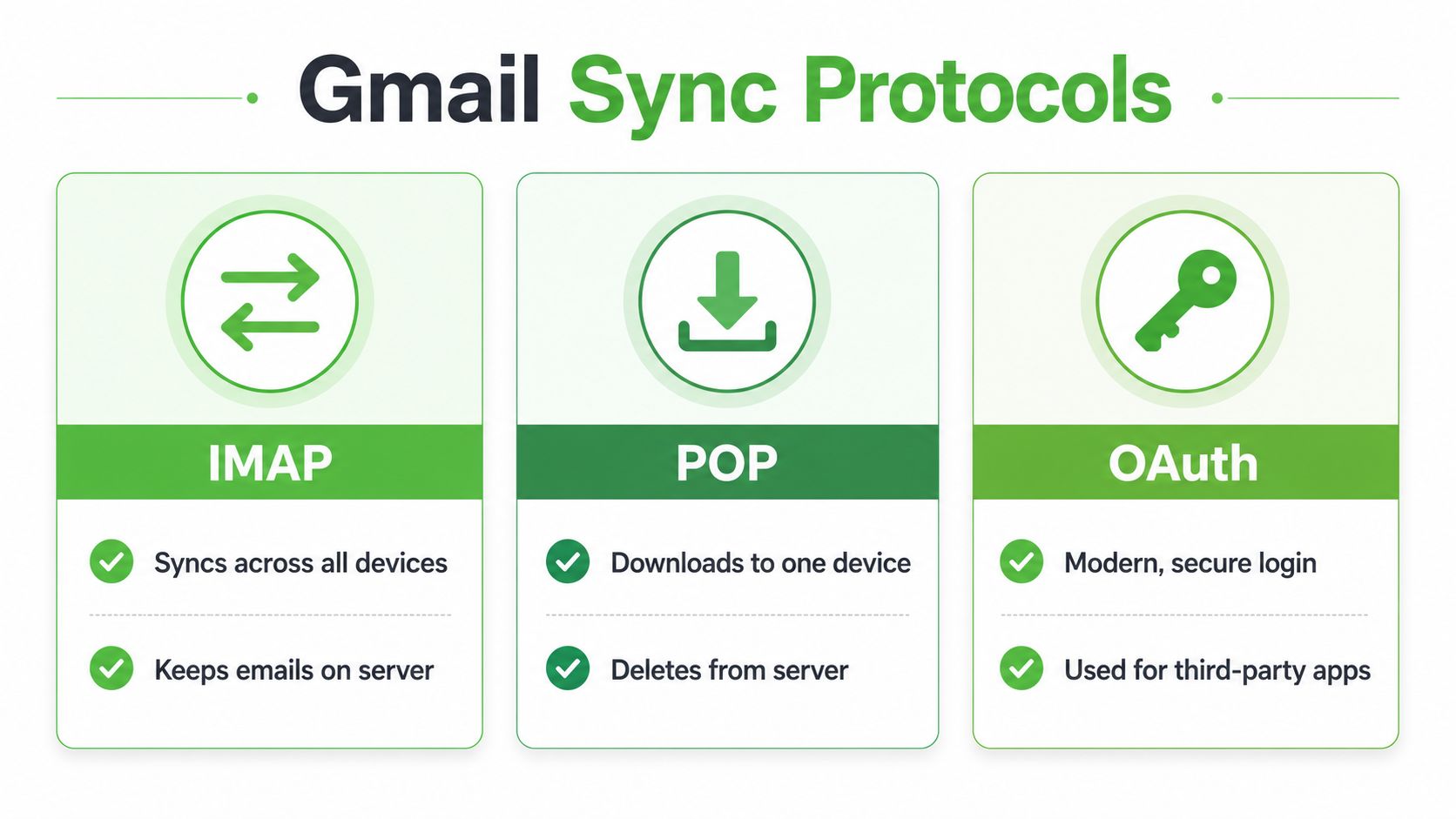
IMAP, POP, and OAuth are not interchangeable
A Gmail account can look “synced” in the app and still fail on the device. The usual culprit is not the mailbox itself, but the protocol behind it, plus the way the phone or desktop client is allowed to run in the background.
IMAP is the protocol most setups should use for a modern mailbox. It leaves mail on the server and mirrors changes across devices, so an archive action, label change, or delete action can appear everywhere. POP works differently. It is built around downloading mail to one device, and that is where problems start if the same account is opened in more than one client, because the state no longer stays aligned.
OAuth is not a mail-storage protocol. It is the login layer modern apps use to connect securely to Google accounts. In practice, that makes OAuth the cleaner path for Gmail app access and many newer third-party clients, while IMAP still carries the mailbox traffic. Google also documents user-level sync choices on Chrome and Chrome OS, including Sync everything and Customize sync, which shows the platform supports both broad replication and selective sync across devices. Google Workspace Gmail API sync guide
For desktop admins, the protocol choice matters just as much as the client choice. A well-configured IMAP client can stay aligned with Gmail without turning every folder into a separate mess, while POP can create exactly the fragmentation people are trying to avoid. If you manage a server-side mail stack and want a server-side reference point for how IMAP delivery is handled, the Dovecot setup guide is a useful place to compare that behavior.
Gmail's checkpoint model is the part most guides skip
Google's sync flow for third-party clients starts with messages.list, which fetches message IDs. The client then calls messages.get in batches for those IDs, and after that it stores the latest message's historyId so the next sync can resume from a checkpoint. For later reads, Google recommends history.list with a saved startHistoryId, which returns only history newer than that checkpoint and avoids pulling the whole mailbox again. Google Workspace Gmail API sync guide
That checkpoint behavior is what many setups miss. Gmail sync is stateful, so every clean incremental update depends on the last clean checkpoint. If the client loses that state, or the device stops processing updates in the background, the account often has to rebuild more of its local cache. That is why some devices seem to catch up slowly after being offline or after a bad login event.
Gmail does not behave like a page refresh. It behaves like a ledger, and the last checkpoint has to survive.
Full sync and partial sync are not competing ideas. Full sync builds the initial cache, partial sync keeps it current, and the client's job is to preserve the checkpoint so the mailbox does not have to be pulled from scratch every time.
Enable IMAP and Secure Your Account
The first mistake people make is trying to troubleshoot sync before the account is allowed to sync. Gmail has to permit IMAP before a desktop client can connect, and the device has to be allowed to sync that account in the first place. On Android, the usual path is through Gmail or account sync settings, where the correct Google account is selected and Sync Gmail is turned on. For IMAP-style clients, the Gmail account also has to have IMAP enabled in Forwarding and POP/IMAP settings before the mail client can sign in. Constant Contact Gmail mail sync setup
Lock down the account before you blame the client
Security settings can break sync just as easily as protocol settings can. If a legacy client needs an app password, it won't keep syncing reliably with stale credentials or an old login session. Reauthentication fixes more “sync” failures than people expect, because the mailbox often isn't failing, the login token is.
A practical checklist looks like this:
- Confirm the right Google account: People often toggle sync on a secondary account and then wonder why their main inbox still isn't updating.
- Enable IMAP before connecting a desktop client: Without that, Outlook, Apple Mail, and similar clients can't establish the mailbox link.
- Watch for stale credentials: If the password changed recently or a device sat unused for a while, force a fresh sign-in.
- Give the first sync time: Large inboxes don't finish instantly, especially on phones that are also under power management limits.
Practical rule: If you're setting up sync for a legacy IMAP client, solve authentication first, then troubleshoot mailbox behavior.
For teams that care about account hygiene, this is also where security discipline pays off. Finchum Fixes IT's email security best practices for Indy businesses is a helpful companion reference when you're trying to keep account access tight while still letting legitimate clients sync.
Battery optimization deserves attention here too. Some devices will keep Gmail technically connected while blocking the background work that finishes sync. If sync is on but messages still lag, that's often an OS power-management issue, not an IMAP problem.
Sync Gmail on Android and iPhone
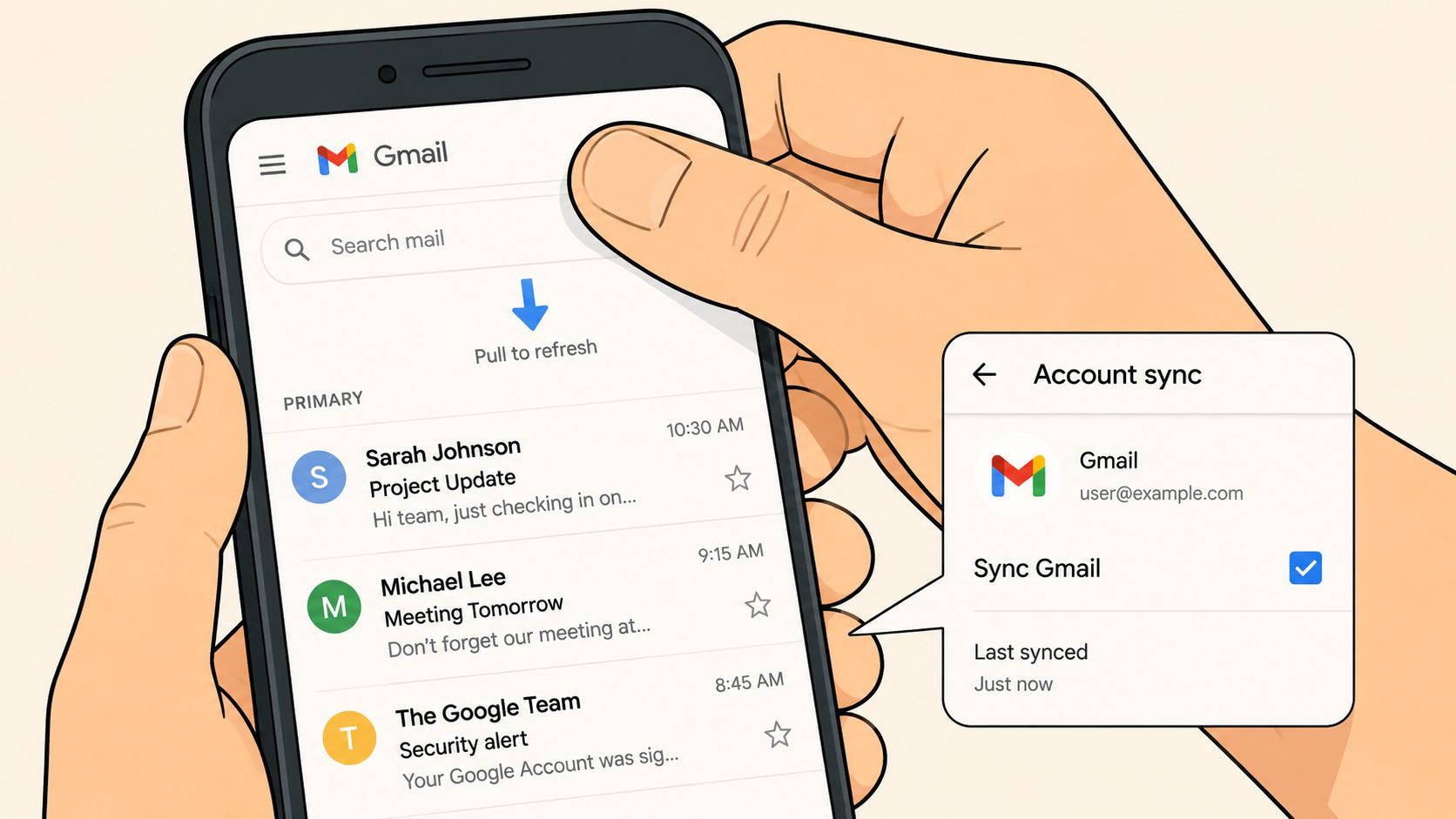
On Android, the first check is still the fastest one. Pull down in the inbox to force a manual refresh, then open the account settings and confirm that Sync Gmail is on or tap Sync now. That split matters. The pull-down tells you whether the app can reach the account at all, while the account toggle shows whether Android is still allowed to keep syncing in the background. Google Gmail sync help on Android
There is another setting that gets overlooked when storage or bandwidth is tight. Google documents an IMAP control that lets you limit IMAP folders to contain no more than a selected number of messages. That can make a phone or lightweight client behave better because it keeps less mail local. The trade-off is clear, faster device behavior and smaller local caches, but less complete offline access. Google Gmail sync help on Android
On iPhone, the path changes depending on whether you use the Gmail app or Apple Mail. The Gmail app uses Google account sign-in and usually gives the cleanest sync experience for people who want the same inbox state across devices. Apple Mail can still work well, but it depends more on system fetch behavior, account permissions, and whatever background limits iOS is enforcing at the moment.
Why phone sync breaks after OS changes
A phone that synced yesterday can stop after an OS update because the background rules changed. People often keep checking the Gmail toggle while the operating system is the actual blocker.
Battery optimization and background refresh settings are the usual offenders. A device can stay technically connected and still stall the work that finishes sync, especially after the OS starts protecting battery life more aggressively. In practice, that means new mail may not appear until the app is opened or the device leaves its restricted state.
Google's support docs show the broader pattern. Gmail sync now spans Chrome, Chromebook, Android, and external mail clients, so the same mailbox is living under different device policies and power models. That is why sync behaves more like an incremental checkpoint process than a single always-on stream. If the checkpoint work is paused, the mailbox looks stale even though the account itself is fine. Google Gmail sync help on Android
If Gmail lags on a phone that already runs a lot of work apps, check storage, background refresh, and battery policy before you blame the account. Those device-level restrictions often decide whether sync happens promptly or waits until the app is foregrounded.
Connect Outlook and Apple Mail via IMAP
Desktop clients usually reveal sync problems first, because people expect the whole mailbox to match what they saw on the phone and in Gmail web. Outlook and Apple Mail handle Gmail best through IMAP, since the client is supposed to mirror the server state instead of pulling messages down into a private copy. Set up that shared state correctly, and the mailbox stays aligned across phone, laptop, and browser.
Use IMAP, not POP, for a shared mailbox state
The setup itself is usually direct. In the client, pick the Gmail or Google sign-in flow if it is offered, or use the IMAP account path with Gmail's approved settings. If the app supports modern authentication, use it. If it does not, expect a legacy password or app-password flow, especially when the client cannot finish OAuth.
The sync model matters more than the button you click. Google's Google Workspace Gmail API sync guide shows the same checkpoint pattern that makes desktop mail feel dependable, first build the local cache, then make small incremental reads from the stored state, then continue from the saved history marker. That is why a healthy desktop sync feels calm instead of constantly reloading the whole mailbox. It updates from the last known checkpoint, not from scratch.
Leave POP turned on, and the mailbox can split into separate versions across devices. POP is built around download behavior, not shared state, so it works against the goal of keeping Outlook, Apple Mail, and Gmail in agreement. IMAP keeps the thread state on the server, which is what you want when several clients need to show the same mailbox.
Desktop sync only works if the client can stay current
Once the account is connected, test whether changes move both ways. Archive a thread in Outlook and confirm that it clears from Gmail, then send a reply from Apple Mail and check that the sent item appears where you expect it. If the results do not match, the usual causes are authentication trouble, a stale cached session, or a leftover POP configuration still interfering with the account.
The GUI is only the front door. The checkpoint state underneath is what keeps the client honest.
A clean IMAP setup also makes shared inboxes and agency workflows easier to manage. When everyone sees the same labels, sent mail, and read state, you stop chasing phantom unread messages and duplicate replies. That is the practical value of syncing Gmail through a desktop client, it keeps mailbox behavior consistent instead of letting each device invent its own version of reality.
Manage Labels Contacts Calendar and Tips
Gmail sync is bigger than message bodies. Labels, contacts, and calendar data all influence whether the mailbox feels aligned or scattered, especially when people jump between Gmail web, Android, and a desktop client that thinks in folders instead of labels. That mismatch is where a lot of workflow confusion starts.
Labels are not folders, and that difference matters
Gmail labels can appear folder-like in Outlook or Apple Mail, but they don't behave exactly the same way. One message can carry more than one label in Gmail, while a traditional folder model usually treats a message as belonging to one place at a time. If you map labels too aggressively into folders, you can end up with duplicated trees or a cluttered sidebar that hides the actual thread state.
Contacts and calendar data follow a separate integration path. On mobile, that usually comes from adding the Google account itself so the device can pull mail, contacts, and calendar together. On desktop, the sync story may involve separate calendar and contact layers, so it's worth checking whether your issue is mail sync or a broader account integration gap.
A few habits keep the whole stack cleaner:
- Use one primary Google account profile: Mixing accounts across devices is the fastest way to lose track of which mailbox is authoritative.
- Clear app cache when Android gets stale: Cached data can make the inbox appear frozen even when the server is current.
- Prefer push where it's available: Real-time mail access matters more on client-facing work than delayed fetch cycles.
If your team uses broader automations around client communication, a platform like Double My Leads can sit alongside Gmail by handling WhatsApp inbox workflows, assignments, and quick replies in a separate channel while Gmail continues to manage email state.
Daily sync hygiene beats emergency cleanup
The best Gmail setups don't rely on rescues. They stay healthy because the account, device, and client all point to the same source of truth. That means checking the same Google profile on each device, keeping the client updated, and not stacking multiple mail apps on top of one another unless you've tested how they map labels and sent mail.
When people say Gmail “doesn't sync,” they're often describing a mismatch between how they expect folders to work and how Gmail replicates state. Once that gap is closed, the inbox stops feeling random and starts behaving like one mailbox again.
Troubleshoot Sync Failures and Final Takeaways
When sync still fails after the toggle is on, the problem is usually below the app layer. The hidden causes are device sync settings, storage pressure, battery limits, and background restrictions that keep Gmail from checking for new mail even though the account looks enabled. The common mistake is to assume Gmail is broken when the operating system is pausing background work.
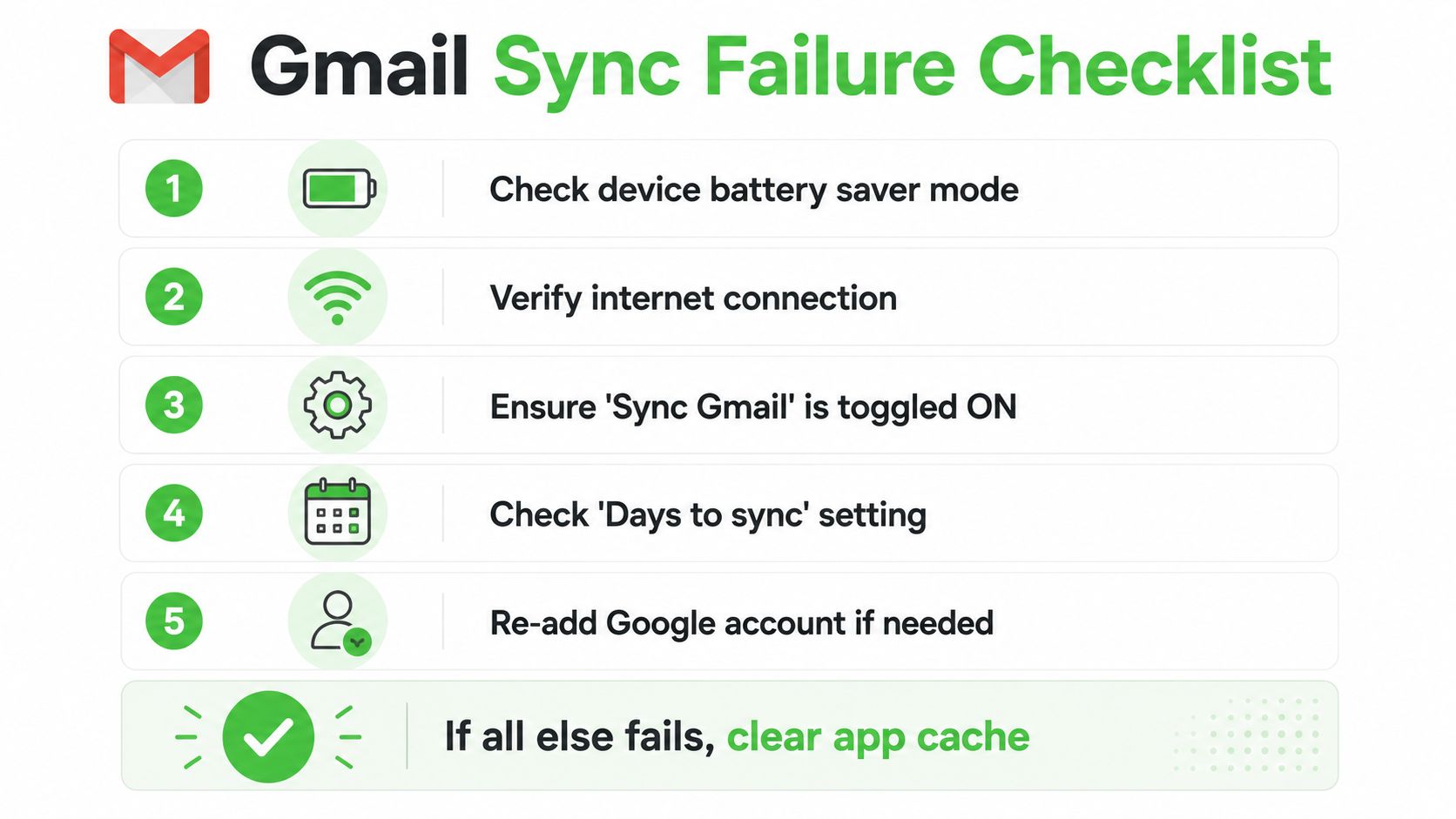
Fix the device before you reset the mailbox
Battery saver mode is the first thing I check on phones that stop syncing without warning. If the OS is restricting background activity, Gmail can stay signed in and still fail to pull new messages until the app is opened manually. The same problem shows up with background refresh limits and low storage on both Android and iPhone, and it often looks like a mail issue when it is really a device policy issue.
The usual remediation path is practical, not dramatic:
- Check battery saver mode: If the phone is aggressively conserving power, Gmail may not finish background sync.
- Verify the internet connection: A weak or captive connection can make sync appear broken when it's really intermittent.
- Confirm the Gmail sync toggle: The account may be present, but sync can still be off for that specific Google account.
- Review the local storage situation: When device storage is cramped, sync often stalls or behaves unpredictably.
- Re-add the Google account if needed: Stale credentials and corrupt account state can survive simple toggles.
Don't reset Gmail first. Reset the parts that sit between Gmail and the operating system.
The piece most guides skip is the checkpoint-based incremental sync model. Gmail does not rebuild the full mailbox every time a device wakes up. It checks for changes in steps, then pauses when the phone is saving power, offline, or short on storage. That is why a mailbox can look current on one device and stale on another, even though both are signed in and the sync switch is on. Google's Android help points to those device-level causes directly in its Google Gmail sync problem help on Android guidance.
If you are migrating mail between systems or cleaning up a broken setup, it helps to read sync advice alongside migration advice. Networking2000's guide on how to migrate business email properly is useful when the issue is not just syncing one mailbox, but moving people off a fragile setup without losing continuity.
The final rule is simple. Verify IMAP, keep the account secure, respect the checkpoint model, and treat sync as a system spread across devices instead of a single app toggle. That is the difference between a mailbox that works in theory and one that stays current when your team depends on it.
If your Gmail setup is still drifting across devices, Double My Leads can help you tighten the communication workflow around it, especially if your team is juggling email and WhatsApp at the same time. Visit Double My Leads to see how its shared inbox, assignments, tags, and automation fit into a cleaner client-response stack.


