
You've got a CSV somewhere on your desktop right now. It might be a webinar export, a list from an old CRM, a trade show spreadsheet, or a contact dump someone sent over with the helpful note “can you import this today?”
The file looks simple until you open it. Names are jammed into one column. Phone numbers use three different formats. Half the headers make sense only to the person who built the sheet. A few rows are blank. A few more are duplicates. And the minute you try to move it into a CRM, Google Contacts, or a WhatsApp tool, the problems start.
That's why most csv to contacts projects fail before the upload screen. The issue usually isn't the destination platform. It's the spreadsheet. Clean the file once, structure it properly, and you can reuse that same list almost anywhere. If your source data started life inside invoices, forms, or scanned documents, PDF data extraction tools can help turn that mess into a usable CSV before you begin the main cleanup work.
Table of Contents
- From Messy Spreadsheet to Powerful Asset
- Your Pre-Flight Checklist for a Clean CSV
- Mastering Field Mapping and Deduplication
- Platform-Specific Import Workflows
- Automating Your CSV to Contacts Process
- Troubleshooting Common Import Errors
From Messy Spreadsheet to Powerful Asset
A contact spreadsheet is usually more valuable than it looks. It's not just rows in Excel. It's lead history, buying intent, relationship context, and future campaign reach. The problem is that raw spreadsheets aren't operational assets until they're structured well enough to move cleanly between systems.
CSV became the common language for this kind of movement because it's simple, portable, and widely supported across CRM and contact platforms, which is why teams still rely on it for migrations, list management, and ongoing data cleanup across systems and regions, as noted in Constant Contact's CSV import documentation. That portability matters more than people think. It means one cleaned file can support a CRM import today and a different platform tomorrow without rebuilding the list from scratch.
What turns a spreadsheet into an asset isn't the upload itself. It's the decisions you make before the upload. Which column is your unique identifier. How you normalize names. Whether you keep one phone field or split mobile and work. Whether your contact source is preserved for segmentation later.
Practical rule: A CSV isn't ready when it “looks fine” in Excel. It's ready when another system can read every column the same way you intended it.
The strongest csv to contacts workflow is universal. Prepare the sheet so it can survive any import wizard, not just the one you're using today. That means clean headers, predictable values, one record per row, and enough consistency that field mapping becomes boring.
If you do that work up front, the same file can power a CRM, Google Contacts, or a messaging platform without the usual cleanup loop of import, fail, fix, retry.
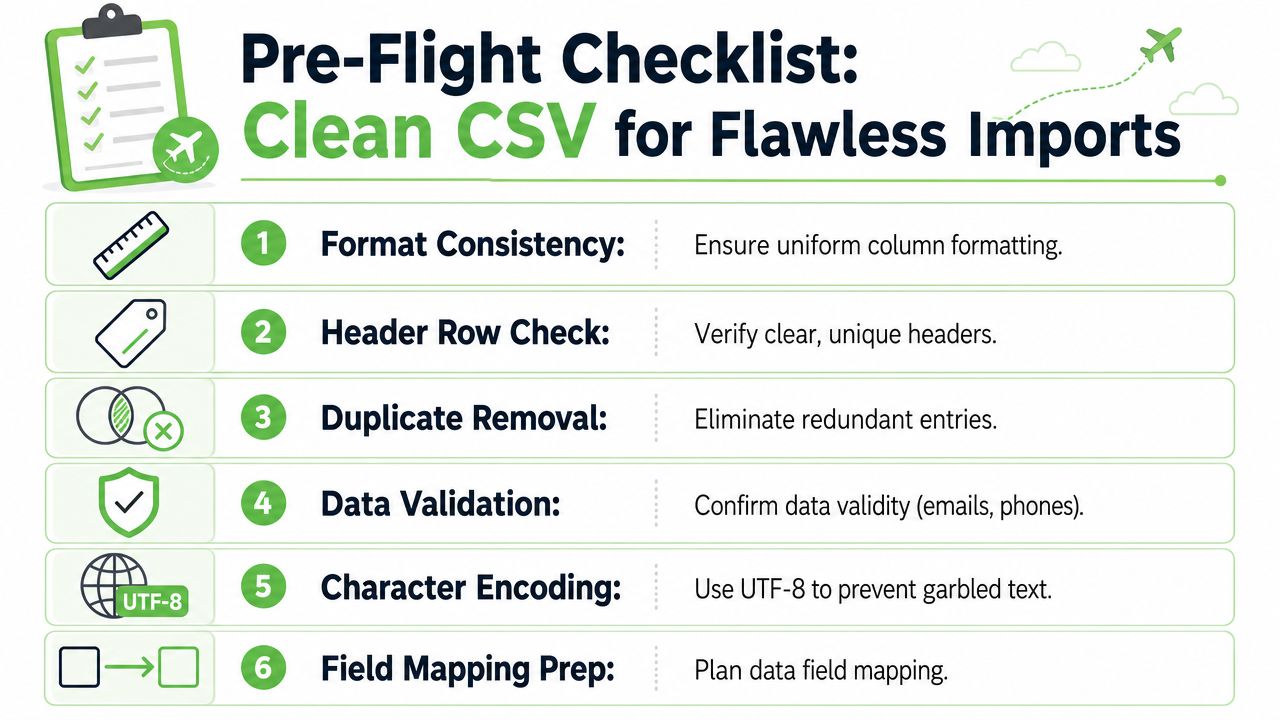
Your Pre-Flight Checklist for a Clean CSV
Most import headaches are self-inflicted. The file opens, rows are visible, and that creates false confidence. Then the importer rejects it, ignores half the columns, or mangles names and phone numbers.
Independent help documentation points to the same root causes over and over: missing or edited header names, non-UTF-8 encoding, duplicate contacts, wrong delimiters, and value-format restrictions. The bigger lesson is that the problem is often spreadsheet hygiene, not the import tool, as outlined in 4Degrees' CSV import guidance.
Start with structure, not content
Before fixing values, fix the sheet itself.
- Keep one header row only: Your file should have a single header row at the top. No title row above it. No notes. No blank first row.
- Remove fully blank rows: Blank rows can confuse parsers and inflate row counts.
- Delete decorative formatting: Colors, merged cells, frozen banners, and grouped rows don't belong in an import file.
- One contact per row: If one person appears across multiple lines because someone pasted notes badly, fix that before export.
- Use stable column names: Pick direct headers like First Name, Last Name, Email, Phone, Company, Job Title.
If you're making large changes to a working list, use a process that supports safe bulk edits from a spreadsheet so cleanup doesn't create a second round of avoidable errors.
Standardize the fields that usually break imports
Some columns cause most of the damage.
Names should be split where possible. If your file has a single Full Name column, break it into First Name and Last Name before import. Personalization works better, and mapping is cleaner across CRMs and email tools.
Email addresses need a quick sanity pass. Look for trailing spaces, obvious typos, and placeholder values. If email is your unique identifier, treat it like the anchor field for the whole import.
Phone numbers need the most discipline. A phone field with parentheses, spaces, mixed country codes, leading zeroes, and text like “main line” is asking for trouble. Normalize phones into one consistent international format. For global contact operations, that usually means storing the country code and number in a way your destination system can interpret consistently.
Dates should use one format across the file. Don't mix different locale styles in the same column. If one row reads like month/day/year and another looks like day/month/year, someone will get imported into the wrong lifecycle date or follow-up sequence.
Bad imports rarely fail because of one catastrophic issue. They fail because five small inconsistencies stack up in the same file.
Save the file in a format your importer can actually read
A valid-looking spreadsheet still fails if the saved file is wrong.
Use this final check before export:
- Save as CSV, not XLSX: Some teams clean in Excel or Sheets, then accidentally upload the native spreadsheet file.
- Use UTF-8 encoding: This helps preserve special characters in names, notes, and company fields.
- Confirm the delimiter: If your platform expects commas and your regional settings exported semicolons, records can collapse into nonsense.
- Run a sample import first: A small test batch catches mapping or formatting issues before they affect the full list.
The fastest teams I've worked with don't jump straight to a full upload. They create a clean sample, test it, inspect the result, then run the complete file once the structure is proven.
Mastering Field Mapping and Deduplication
The file can be perfectly clean and still import badly if the columns land in the wrong places.
I've seen this happen with lists that looked ready to go. Names ended up in company fields, mobile numbers overwrote office lines, and a useful segmentation column got skipped because nobody created the matching custom field first. The spreadsheet was fine. The translation step was not. That is why data prep has to include import logic, not just cleanup. If you want to prepare once and import anywhere, field names and duplicate rules need to be decided before the upload window is open.
Map fields with intent, not hope
Every platform has its own contact model. One tool wants separate first and last name fields. Another accepts a full name column but handles updates poorly later. Some importers guess well from clean headers. Others do a mediocre job and misplace data.
Auto-mapping is useful for obvious fields like email or first name. It is a bad place to trust luck with anything operational, especially phone numbers, lifecycle data, source fields, consent fields, and custom segmentation.
A practical standard helps:
- Use one column per field
- Match headers to common destination names where possible
- Split combined fields before import
- Create custom fields in the destination before uploading
- Leave no doubt about what should update an existing record
If you need a low-risk place to test a basic contact file structure before a CRM import, this guide to importing Google contacts is a useful reference. Google's simpler model can expose obvious header and formatting mistakes before you push the same file into a system with stricter rules.
Common CSV Header to Standard Field Mapping
| Your CSV Header (Example) | Standard Contact Field | Notes |
|---|---|---|
| Full Name | First Name / Last Name | Split before import if possible |
| First | First Name | Keep capitalization consistent |
| Surname | Last Name | Do not mix with a full name field |
| Email Address | Often the safest match key | |
| Cell Ph | Mobile Phone | Rename if the destination uses Mobile |
| Phone 1 | Phone | Decide whether this means main, work, or primary |
| Company Name | Company | Use one company field consistently |
| Job Role | Job Title | Normalize if reporting or segmentation depends on it |
| Lead Source | Source | Useful for filtering imported cohorts later |
| Tier | Custom Field | Create the custom field before import |
| Notes | Notes | Check for line breaks and unsupported characters |
Set duplicate rules before the first record goes in
Duplicate handling decides whether an import cleans up your database or makes it harder to trust.
The right setting depends on the job. A net-new event list should usually skip records that already exist. A partner-supplied update file may need to enrich existing contacts with better phone numbers, titles, or region values. Creating duplicates on purpose is rare, and usually tied to edge cases like separate business units that maintain independent records.
Use these rules deliberately:
- Skip duplicates: Use this when the system of record is already reliable and the CSV is mainly for adding new contacts.
- Update existing records: Use this when the CSV has newer values and you are confident the matching key is clean.
- Allow duplicates: Use this only when duplicate records are an accepted part of the process.
The matching key matters just as much as the duplicate mode. Email is usually the safest option. Phone can work, but only if formatting is already standardized across the source file and the destination. Name-plus-company matching sounds attractive and often creates bad merges.
Protect fields you will need later
Imports fail without immediate notice when teams treat custom fields as optional. Source, owner, region, consent status, customer tier, and lifecycle stage all affect routing and segmentation later. If those columns are not mapped cleanly on day one, somebody ends up rebuilding audiences by hand.
That rework is expensive.
Set up the destination fields first. Then map each column on purpose. If a value matters for reporting, automation, or follow-up, do not leave it to an importer's best guess.
Field mapping rule: If a column will matter after the import, decide its destination before you upload. “We'll sort it out later” usually turns into permanent data loss or a cleanup project nobody wants.
Platform-Specific Import Workflows
A clean CSV can still go sideways if you treat every importer the same. The file may be ready, but the destination decides what gets accepted, what gets ignored, and what turns into cleanup work later.

The practical rule is simple. Prepare once, then adjust for the platform's contact model, required fields, and compliance checks. That approach saves far more time than learning one importer at a time and fixing the same spreadsheet mistakes in three different tools.
Google Contacts for simple address book imports
Google Contacts is a good first stop when the job is basic contact storage and light personal outreach. It accepts a straightforward CSV structure, and that makes it useful for quick imports, spot checks, or smaller business lists that do not need much operational logic.
If you want the click-by-click process, this guide to importing Google contacts covers the actual Google workflow.
The trade-off is obvious once the list grows up. Google Contacts does fine with names, emails, phones, and basic details. It starts to feel thin when you need owner assignment, lead source control, lifecycle stages, or any kind of team process around the data. I use it for simple contact management, not for records that need reporting and automation discipline.
CRM imports for controlled updates and team use
CRM imports expose more decisions due to their extensive impact. A bad import in a shared CRM does not just create a messy list. It can break routing, fire the wrong automation, overwrite cleaner values, or create duplicate records that sales has to sort out by hand.
Expect these workflow differences in most CRMs:
- Import mode selection: Many CRMs ask whether you are creating new records, updating existing ones, or doing both.
- Custom field support: You can usually map operational fields that matter after import, such as source, status, owner, territory, or consent.
- Post-import review: Better systems give you an import summary, failed-row reporting, and a way to isolate errors without redoing the whole file.
- Related record handling: Some platforms let you connect contacts to companies, deals, or account records during import.
Good spreadsheet hygiene proves its worth. A CRM will usually accept more columns than Google Contacts, but it will also expose every inconsistency you left in the file. Mixed date formats, blank key fields, and inconsistent picklist values tend to surface fast.
One more platform reality matters here. Many CRMs now process large CSV jobs in the background instead of making users wait on a single upload screen. That makes bulk operations easier to manage, but it does not reduce the need for clean source data. Background processing speeds up the workflow. It does not fix a bad file.
WhatsApp marketing platforms for outreach readiness
WhatsApp-oriented platforms care less about broad contact storage and more about whether the imported list is usable for messaging. That changes what matters during prep.
Phone number normalization becomes the first filter. If numbers are not in a consistent international format, import quality drops fast. The second filter is consent and source clarity. If you cannot explain where the contact came from and what they opted into, the list is risky even if the upload succeeds.
That is the common mistake I see. Teams celebrate a successful upload, then realize the audience is unusable because country codes are inconsistent, opt-in status is missing, or the segmentation fields needed for campaigns never made it into the platform.
For WhatsApp marketing tools, a good import is not just a file that passes validation. It is a list that can be filtered, messaged, and defended from a compliance standpoint the same day.
The best platform workflow starts before the upload. Clean columns, standardized values, and clear consent history make the destination platform almost a secondary decision.
Platform-specific steps will always vary. The spreadsheet problems that cause failed imports are remarkably consistent. Fix those once, and you can move the same contact file into Google, a CRM, or a WhatsApp platform with far less rework.
Automating Your CSV to Contacts Process
Manual imports work for one-off lists. They become a bottleneck once new contacts start showing up every day from forms, event scans, partner spreadsheets, and lead vendors.

The mistake is treating automation as a shortcut around data prep. It is not. Automation only scales whatever enters the pipe. If the source sheet has drifting headers, mixed date formats, or phone numbers stored three different ways, the workflow will create bad records faster than any manual import ever could.
That is why the best automation strategy starts with a stable, universal CSV standard. Prepare once, import anywhere. The same clean structure should support a CRM import, a Google Contacts upload, or a WhatsApp marketing platform without rebuilding the file every time.
Low-code automation for steady lead flow
A practical low-code setup is simple. A form captures the lead, the data lands in Google Sheets, and Zapier watches for new rows to create or update contacts in the destination system.
This setup saves time when the inputs are controlled. It fails when every source collects data differently.
I usually keep low-code automations on a short leash. They are good at repetitive cleanup like trimming spaces, standardizing capitalization, assigning default values, and routing records based on one or two reliable fields. They are a poor place to hide messy business rules that should have been fixed in the form or spreadsheet template upstream.
Three practices keep these workflows reliable:
- Use one approved column structure: Lock the header names and order so every source file follows the same schema.
- Normalize before the handoff: Clean country codes, date formats, and status values before the record reaches the import step.
- Review exceptions, not every row: Send incomplete or suspicious records to a review sheet instead of forcing them through.
Here's a useful walkthrough for thinking about automated import flows in practice:
Code-based automation for higher control
Once volume grows, or the field logic gets more specific, code is usually the cleaner option.
A small Python job with pandas can validate headers, split full names, standardize phone numbers, strip hidden whitespace, flag duplicates, and export a destination-ready file on a schedule. That gives operations teams something low-code tools often struggle with: repeatable rules, error logging, and a clear record of what changed.
A key advantage is control. You can test a sample file before a full run, quarantine rows that fail validation, and keep a clean output CSV for any platform that still relies on spreadsheet imports. If the destination supports an API, the same preparation layer can feed direct contact creation without changing your cleanup logic.
That is the point of automation in a csv to contacts process. It turns spreadsheet hygiene into a repeatable system instead of a last-minute cleanup job before each import.
Troubleshooting Common Import Errors
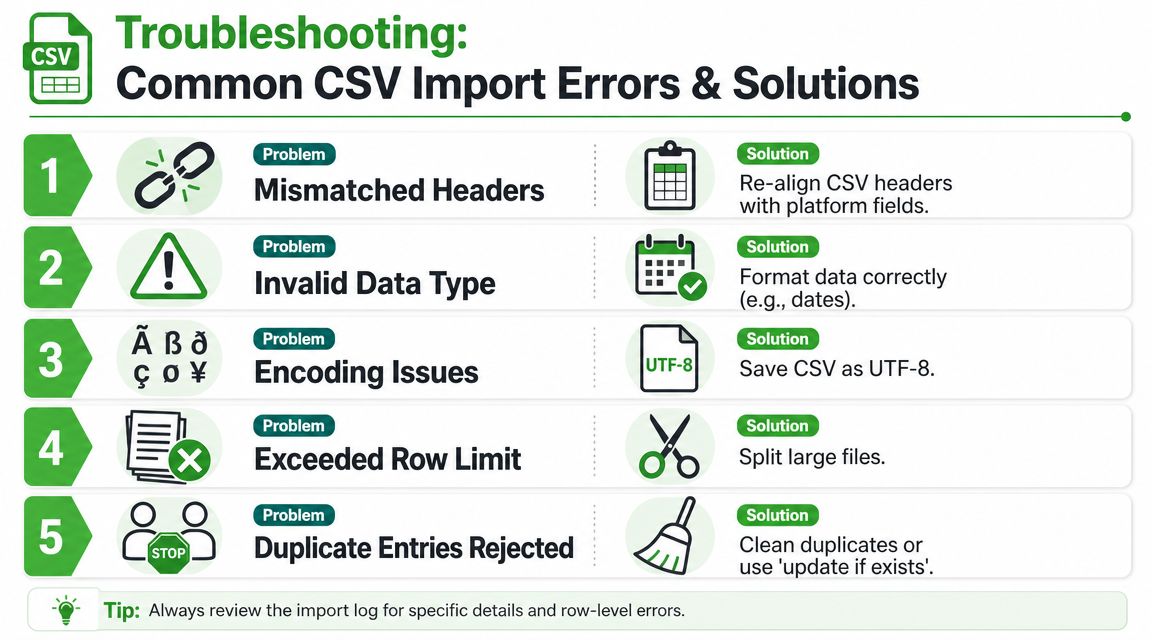
You run the import, expect a clean win, and get a vague error message or a file full of mangled records. That usually points back to spreadsheet prep, not the platform itself. If the CSV is structured well, most import problems become easy to isolate and fix.
When the file won't import at all
Symptom: The importer rejects the file immediately.
Cause: The file is too large, the platform times out, or the parser struggles with row volume. This comes up often with exports that include unused columns, long notes, or attachment references.
Fix: Trim unnecessary columns first. If the file is still heavy, split it into smaller batches and import them in sequence.Symptom: Every field appears in one column or rows break in strange places.
Cause: Delimiter mismatch. The file uses semicolons, tabs, or locale-specific separators while the importer expects commas.
Fix: Re-export the file with the correct delimiter. If anything looks off, open the CSV in a plain-text editor and check the actual separators before retrying.
When the import works but the data is wrong
A successful upload can still create a cleanup mess. I treat bad field placement as an import failure, because fixing broken records inside the destination system usually takes longer than correcting the source file.
Symptom: Names, notes, or non-English characters display incorrectly.
Cause: Encoding issue.
Fix: Save the file as UTF-8 and test a small sample before running the full import.Symptom: Phone numbers, dates, or postal codes change format after import.
Cause: Spreadsheet software auto-formatted the source values before export, or the column contains mixed formats.
Fix: Standardize the column in the spreadsheet first. Store dates in one format, keep phone numbers in a consistent international pattern, and format ZIP or postal code fields as text when leading zeros matter.Symptom: Line breaks disappear from notes or fields shift unexpectedly.
Cause: Quotation marks or embedded commas were not escaped properly in the CSV.
Fix: Re-export from the source system instead of hand-editing the file in a text editor. Manual edits often break quoting rules.
When duplicates and rejected rows pile up
Symptom: Fewer contacts import than expected.
Cause: Duplicate rules, missing required fields, or invalid values can cause rows to be omitted from the import or sent to an error bucket.
Fix: Download the import report, isolate failed rows in a separate sheet, correct only those records, and re-import that subset.Symptom: Custom data disappears.
Cause: The destination field does not exist yet, uses the wrong field type, or was never mapped.
Fix: Create the field first, confirm the field type matches the CSV data, then rerun the failed rows.Symptom: Opt-in status, lead source, or lifecycle stage imports inconsistently.
Cause: The source column uses multiple labels for the same value, such as "Facebook Ads," "FB," and "Meta."
Fix: Normalize controlled values before import. One accepted label per status field prevents partial matches and messy reporting later.
Good operators do not restart from zero every time something breaks. They keep one clean master CSV, test with a small batch, and fix the exact failure the importer reports. Prepare the file once, and the same dataset becomes usable across CRMs, Google Contacts, and WhatsApp marketing tools with far less rework.
If your end goal is turning a cleaned contact list into WhatsApp conversations, campaigns, and automated follow-up, Double My Leads is built for that next step. Agencies and SaaS teams can connect numbers by QR code, sync CRM participants with source attribution, and launch broadcast or automation workflows without getting stuck in a complicated setup.


